Share and preview files
Attach pictures, PDFs and documents, see a preview of each, open it large without downloading, or download it.
Updated
On this page
You can share files in the team chat: pictures, PDFs, Word and Excel files, videos, voice recordings, or anything else.
Attach files
There are three ways:
- Click the paperclip to the left of the message box and choose one or more files.
- Drag files from your computer anywhere onto the chat and drop them.
- Paste a picture (for example a screenshot) into the message box with Ctrl+V (⌘+V on a Mac).
The files show above the message box with a small preview, their name and size. Click × on one to take it off. Add a message if you like, then press Enter or click the send button.
- Up to 10 files in one message.
- Each file can be up to 25 MB.
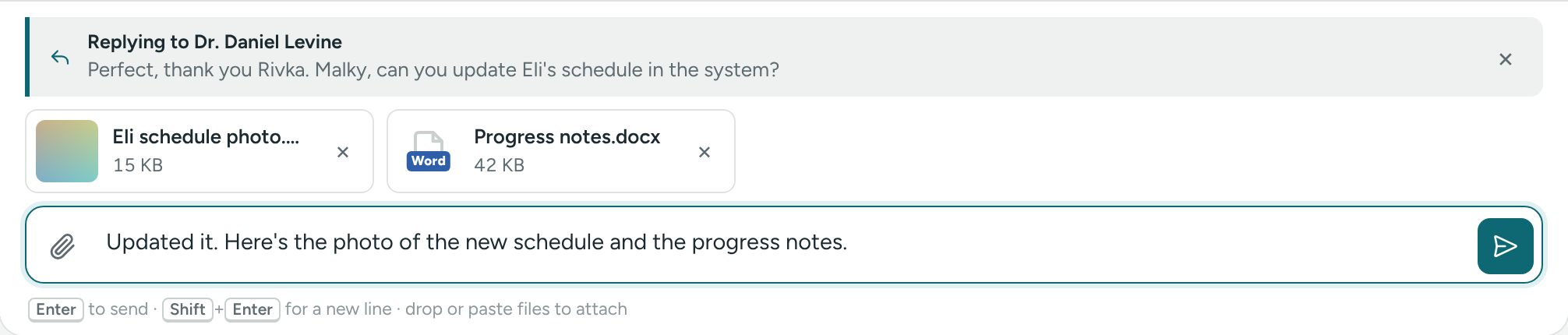
Previews in the chat
Every file in the chat shows a preview, so you can tell what it is before opening it:
- Pictures (PNG, JPEG, GIF, WebP) show right in the message.
- PDFs show their first page, with the name, the number of pages and the size underneath.
- Word files (.docx) show their first lines.
- Excel files (.xlsx, .xls) and CSV files show the first cells of the sheet.
- Text files show their first lines.
- Videos and audio play right in the message.
- Other files (PowerPoint, ZIP and so on) show as a card with the type, name and size.
Open a file large
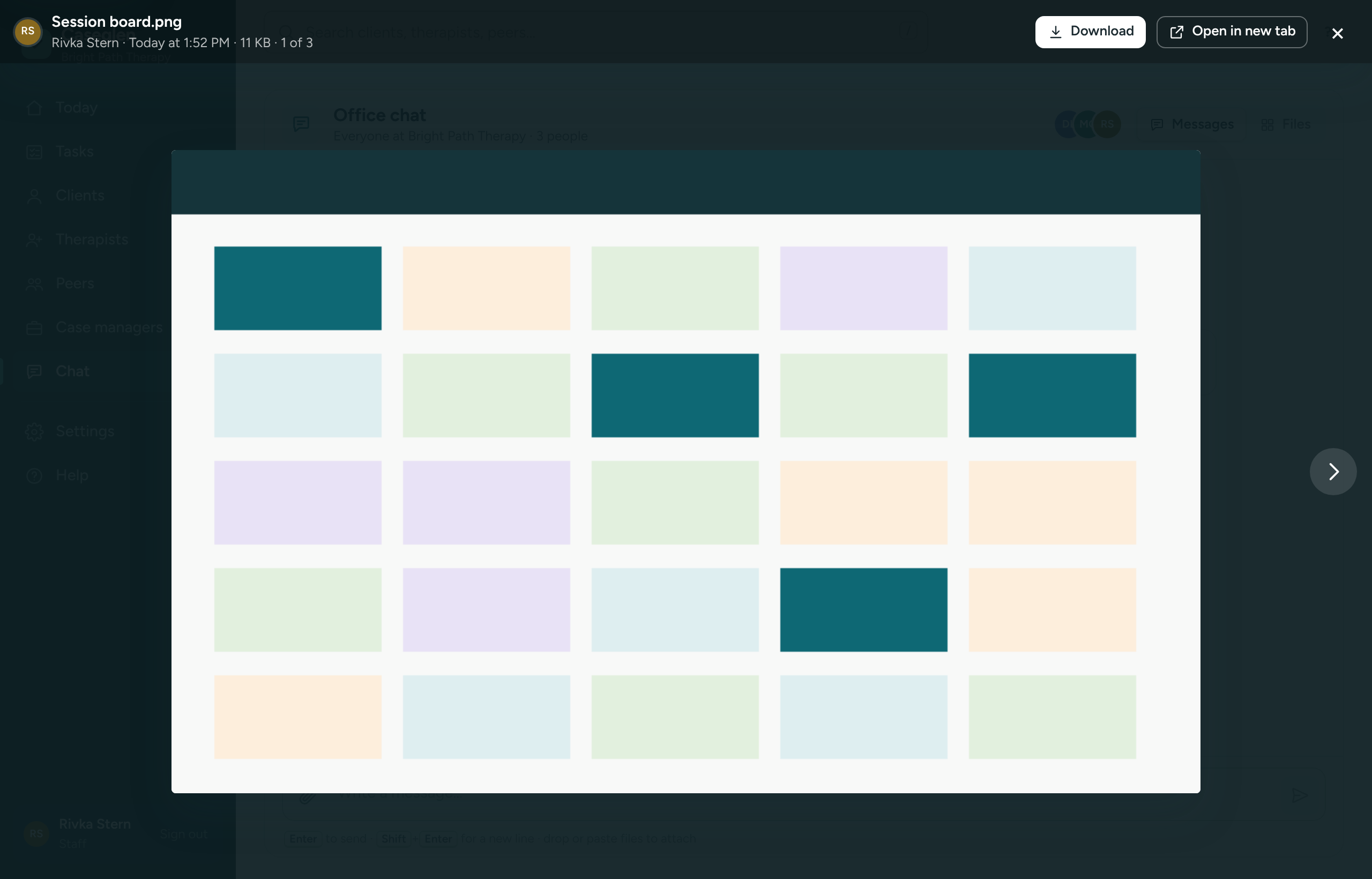
Click any preview. The file opens over the whole screen, without downloading it. This works the same on a computer and on a phone, including Android phones:
- Pictures fit the screen. Click the picture to see it at full size, and again to fit it back.
- PDFs show every page, one under the other. Scroll to go through them; the bar at the bottom shows which page you're on (for example 3 / 12). Use − and + to zoom, and Fit width to make the pages as wide as the screen. On a phone you can also pinch to zoom.
- Word files show as a page you can read: headings, bold and italic text, lists, tables and pictures.
- Excel files show as a table with column letters and row numbers. If the file has more than one sheet, the sheet names are at the bottom; click one to see it. Up to the first 500 rows and 50 columns of each sheet are shown.
- CSV files show as a table too, and text files show in full.
- Videos and audio play.
At the top you'll see the file name, who sent it and when, and its size.
- Download saves the file to your computer or phone.
- Open in new tab opens pictures, PDFs, videos and text files in their own browser tab (where your browser can show them).
- When a message has more than one file, use the arrows (or ← and →) to go through them.
- Press Esc or click × to close.
Some files can't be previewed. The viewer then says why and offers Download:
- Old Word files (.doc) and PowerPoint files.
- Files bigger than 15 MB (PDF, Word, Excel, CSV): "Too large to preview".
- iPhone photos in HEIC format, except in Safari.
- PDFs that are protected with a password.
Previews are made by your own browser. Your files are never sent to an outside service to make a preview.
See every shared file
Click Files at the top right of the chat to see every file shared in the chat, newest first, with who sent it and when. Click one to open it in the same viewer. Click Messages to go back.
Who can see the files
Only people at your agency who are signed in can open the files. Links to them don't work for anyone else, even if they are forwarded. When a message is deleted, its files are deleted too.
If something is unclear or doesn’t match what you see on screen, tell us and we’ll fix it.