Team chat
One chat room for your whole office. Write, reply, fix a typo or delete a message.
Updated
On this page
Chat in the sidebar opens your office chat. Everyone at your agency (directors and staff) is in it, and nobody outside your agency can see it.
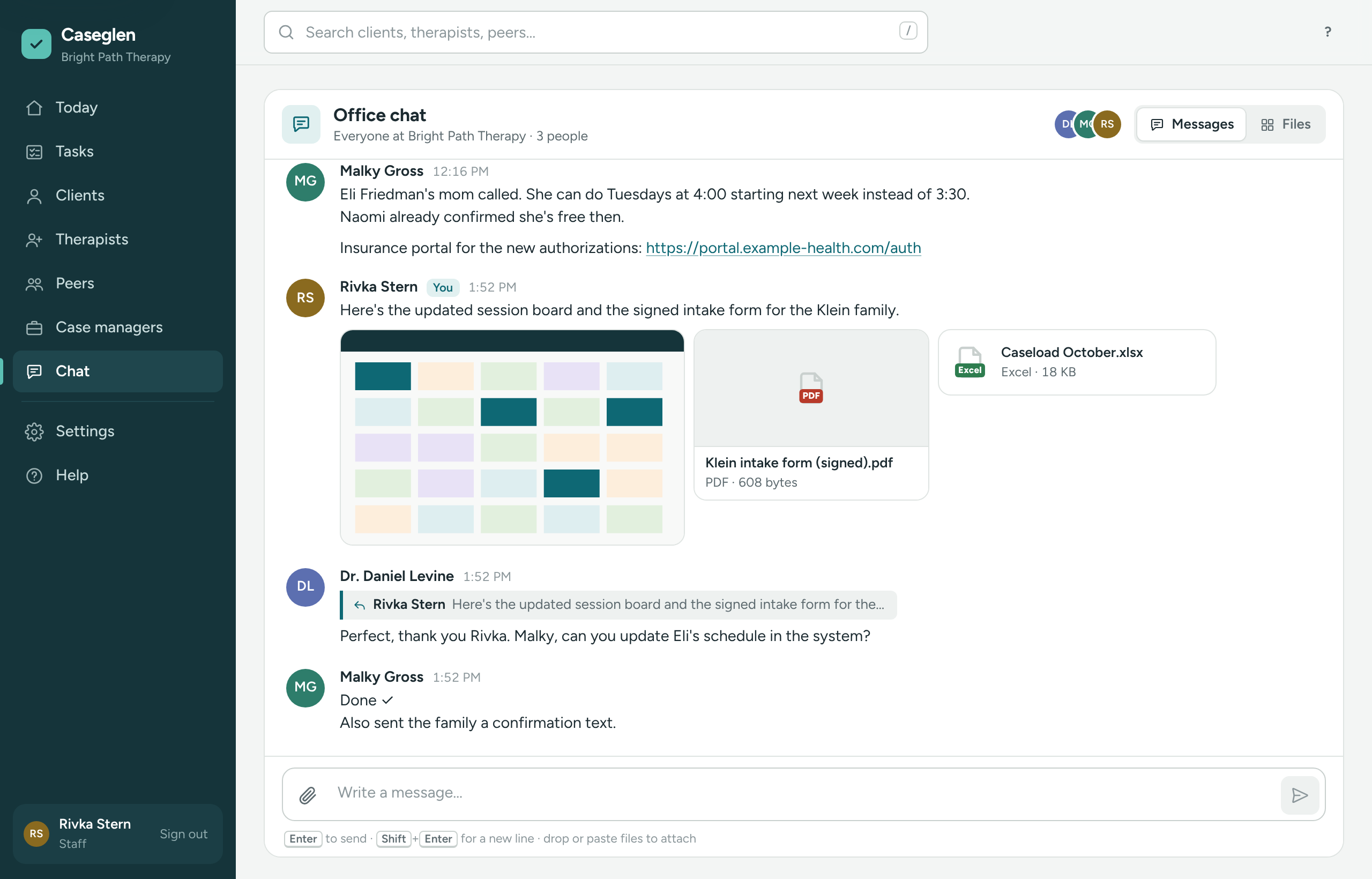
Read the chat
- Each message shows who wrote it, their initials and the time it was sent (in your agency's time zone, from Settings).
- Messages one person sends within a few minutes of each other are grouped under one name. Hover over a grouped message to see its time.
- Lines across the chat mark each day: Today, Yesterday, then the date (for example Mon, Oct 26).
- When there are messages you haven't read yet, a red New messages line shows where they start.
- New messages appear by themselves within a few seconds; you don't need to reload the page. If you have scrolled up to read something older, the chat stays where you are and a new messages button appears at the bottom. Click it to jump down.
- Scroll to the top to load older messages.
The number next to Chat
A red number next to Chat in the sidebar tells you how many messages your colleagues sent since you last opened the chat. It goes away once you open Chat. The number is updated each time you open a page.
Write a message
- Click the box at the bottom that says Write a message…
- Type your message. Press Enter to send it.
- For a new line without sending, press Shift+Enter.
Web addresses you type (like https://example.com or www.example.com) become links that open in a new tab. Messages are plain text, up to 5,000 characters.
To share a picture or a document, see Share and preview files.
Reply to a message
- Hover over the message (on a phone, tap it) and click Reply.
- A Replying to box with the start of that message shows above the message box. Click × to cancel.
- Write your answer and press Enter.
Your reply shows a small quote of the original. Click the quote to jump to the original message.
Fix a message
You can change the text of your own message for 15 minutes after you send it.
- Hover over your message (on a phone, tap it) and click the pencil.
- Change the text and press Enter (or click Save). Press Esc to cancel.
The message then shows (edited). Tip: in an empty message box, press ↑ to fix your last message.
Delete a message
- Hover over your message (on a phone, tap it) and click the trash can.
- Confirm.
Everyone then sees Message deleted in its place, and any files in it are removed. Directors can delete anyone's message, for example something posted by mistake. Staff can delete only their own.
If something is unclear or doesn’t match what you see on screen, tell us and we’ll fix it.