Emails you get
The emails Caseglen sends about tasks, and how to turn each one on or off.
Updated
Caseglen sends a few short emails so you don't have to keep checking the board. Each task email has an Open the task button that takes you straight to it, and the morning email has Open my tasks.
The emails
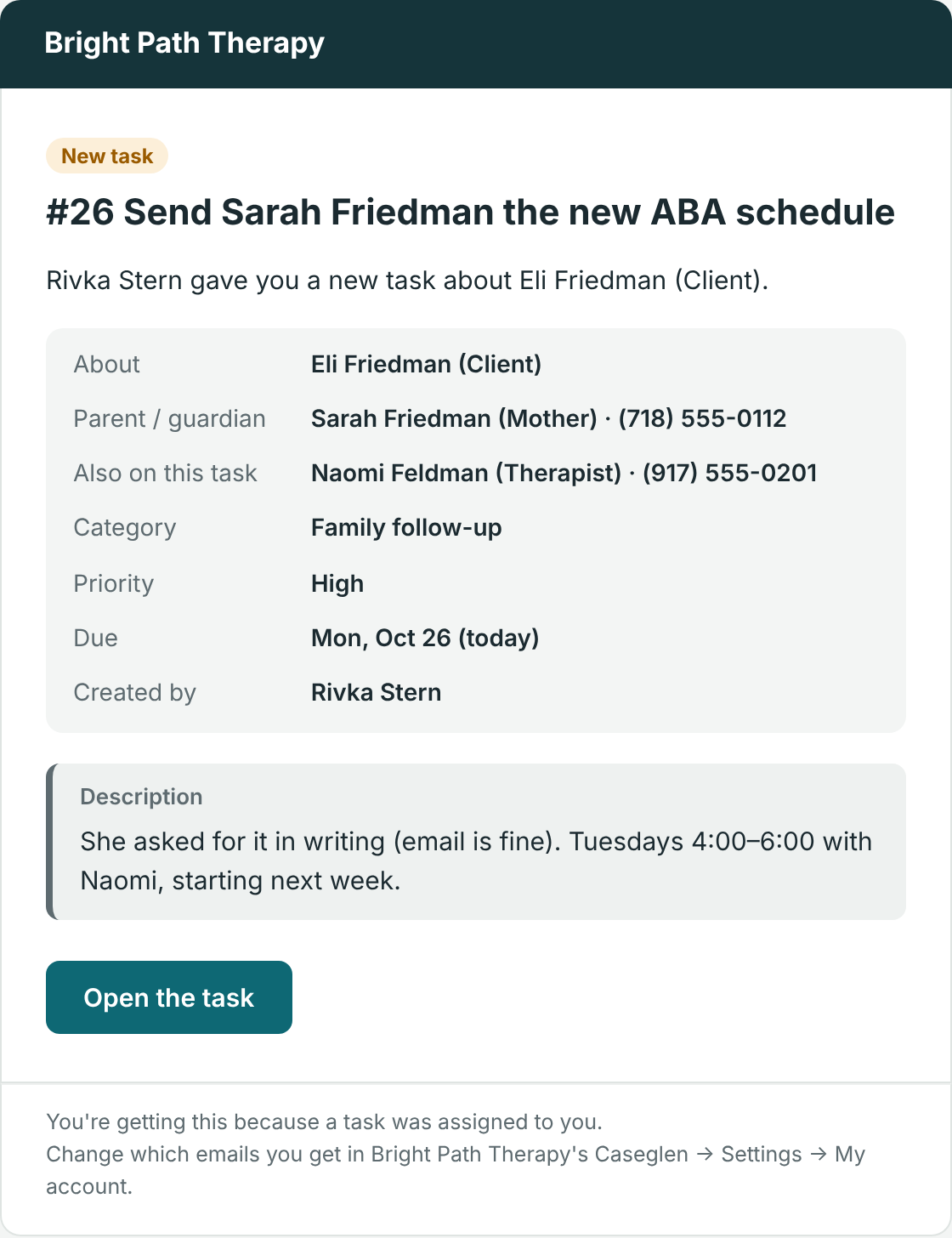
New task – when a task is assigned to you.
- Sent when someone creates a task for you, or changes a task so it's assigned to you.
- Not sent when you assign a task to yourself.
- Includes who it's about, their phone, the parent or guardian, the care team with phone numbers, the category, priority, due date and description (with Full details emails).
Done – when a task you created is marked done.
- Includes who finished it, when, and their note under What was done.
- Not sent if you marked it done yourself.
- When someone marks your task done, the line next to their Mark done button tells them, for example "Dana will be emailed this note".
New comment – when someone comments on a task you created or that is assigned to you.
- Not sent for your own comments.
Morning email – one summary each morning of your tasks for today and anything overdue. See The morning email.
Turn emails on or off
Everyone chooses their own emails.
- Click Settings in the sidebar.
- On My account, find Emails I get.
- Turn each switch on or off:
- New task for me
- My task is done
- Comments
- Morning email
- Click Save.
You'll see "Email settings saved."
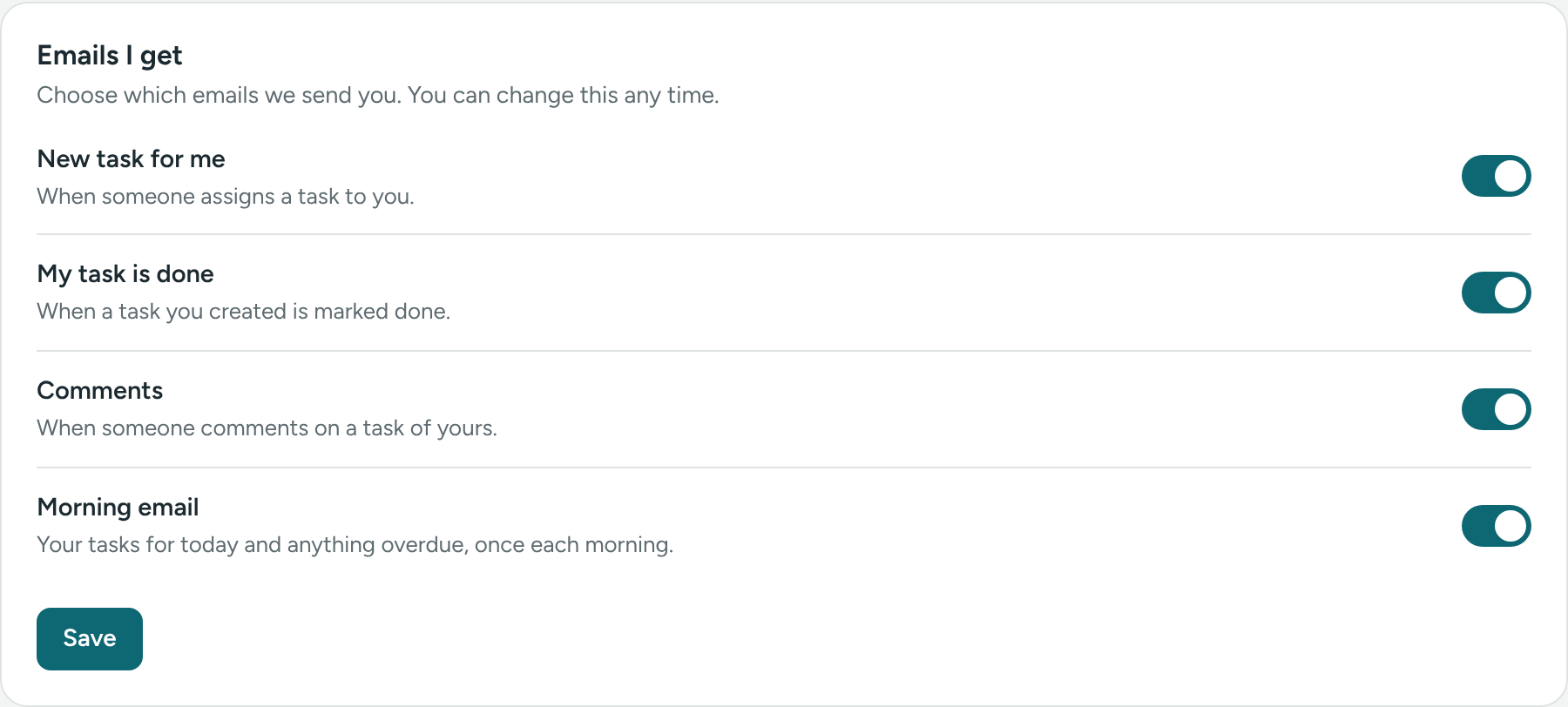
All four are on when your account is created.
Emails for the whole office
A director can also set up, in Settings → Organization & emails:
- When a task is done, also email – extra addresses that get every Done email.
- How much detail in emails – Full details or Minimal. See Full vs. Minimal email detail.
Not getting emails?
- Check your spam or junk folder, and mark Caseglen emails as "not spam".
- Check Emails I get in Settings → My account.
- Make sure your account email is right. It's shown under Your name ("You sign in with…").
- Remember that you won't get emails about your own actions.
Still nothing? Email us at support@caseglen.com.
If something is unclear or doesn’t match what you see on screen, tell us and we’ll fix it.