The morning email
What's in the daily summary, when it arrives, and how to change the time.
Updated
On this page
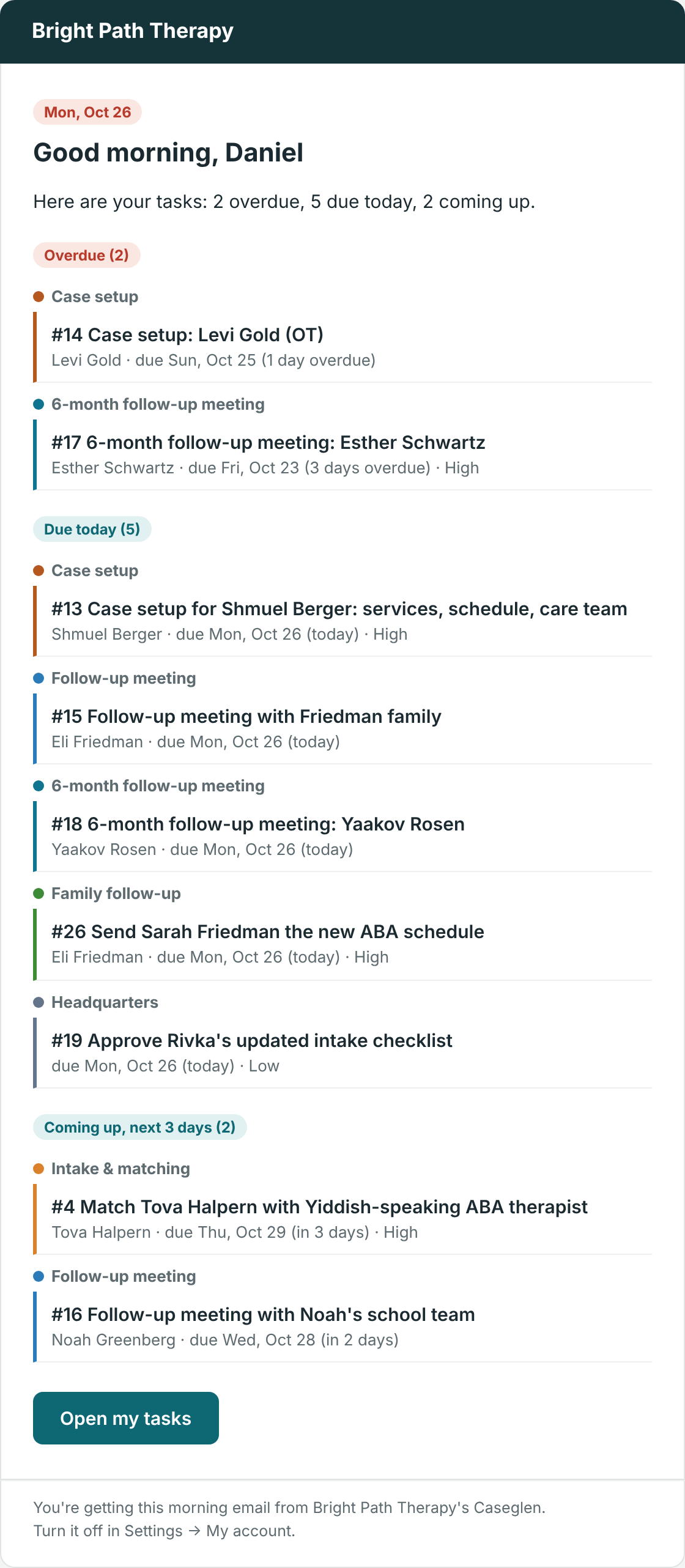
Every morning, each team member gets one email with their own tasks. It's the easiest way to start the day knowing what needs doing.
What's in it
The subject line tells you the counts at a glance, for example "Today: 3 due, 2 overdue".
Inside, your tasks are in sections, each grouped by category:
- Overdue – past their due date and not done.
- Due today
- Coming up, next 3 days
- No due date – just a count, as a reminder.
Each task shows its number and title, who it's about, the due date, and the priority if it isn't Normal. Click any task to open it. The Open my tasks button takes you to the Today page.
Only tasks assigned to you are included.
When it arrives
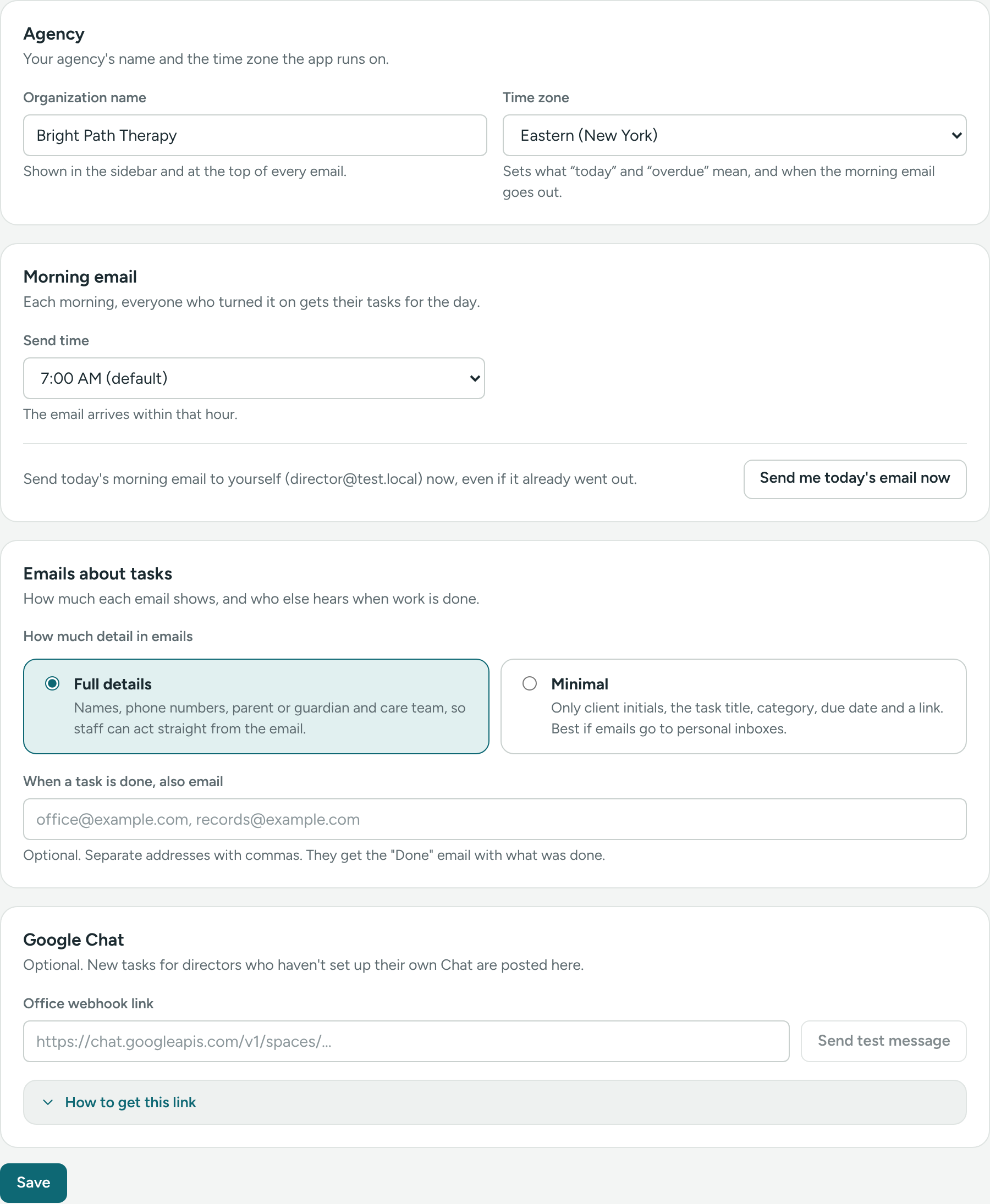
The morning email goes out once a day, shortly after the time your director picks (usually within that hour, and never more than 3 hours later). The default is 7:00 AM in your agency's time zone.
Change the time (directors)
- Click Settings in the sidebar.
- Open Organization & emails.
- In the Morning email card, choose a Send time.
- In the Agency card, check the Time zone is right.
- Click Save at the bottom.
The time applies to everyone in the agency.
See it right now (directors)
Want to see what it looks like? In Settings → Organization & emails, in the Morning email card, click Send me today's email now. It goes to your own email address, even if today's email already went out.
Turn it off for yourself
- Go to Settings → My account.
- Under Emails I get, turn off the Morning email switch.
- Click Save.
Also in Google Chat
If you've connected My Google Chat, a short version of the morning summary is posted there too. See Google Chat messages.
Privacy
If your agency uses Minimal emails, clients show as initials only, like "S. L.". See Full vs. Minimal email detail.
If something is unclear or doesn’t match what you see on screen, tell us and we’ll fix it.