Google Chat messages
Get new tasks and your morning summary in a Google Chat space, using a webhook.
Updated
On this page
If your office uses Google Chat, Caseglen can post messages to a Chat space. It's optional and works alongside email.
What gets posted
Your own Chat (set in My account):
- New tasks assigned to you.
- A short version of your morning email.
The office Chat (set by a director in Organization & emails):
- New tasks for directors who haven't set up their own Chat.
Step 1: Create a webhook in Google Chat
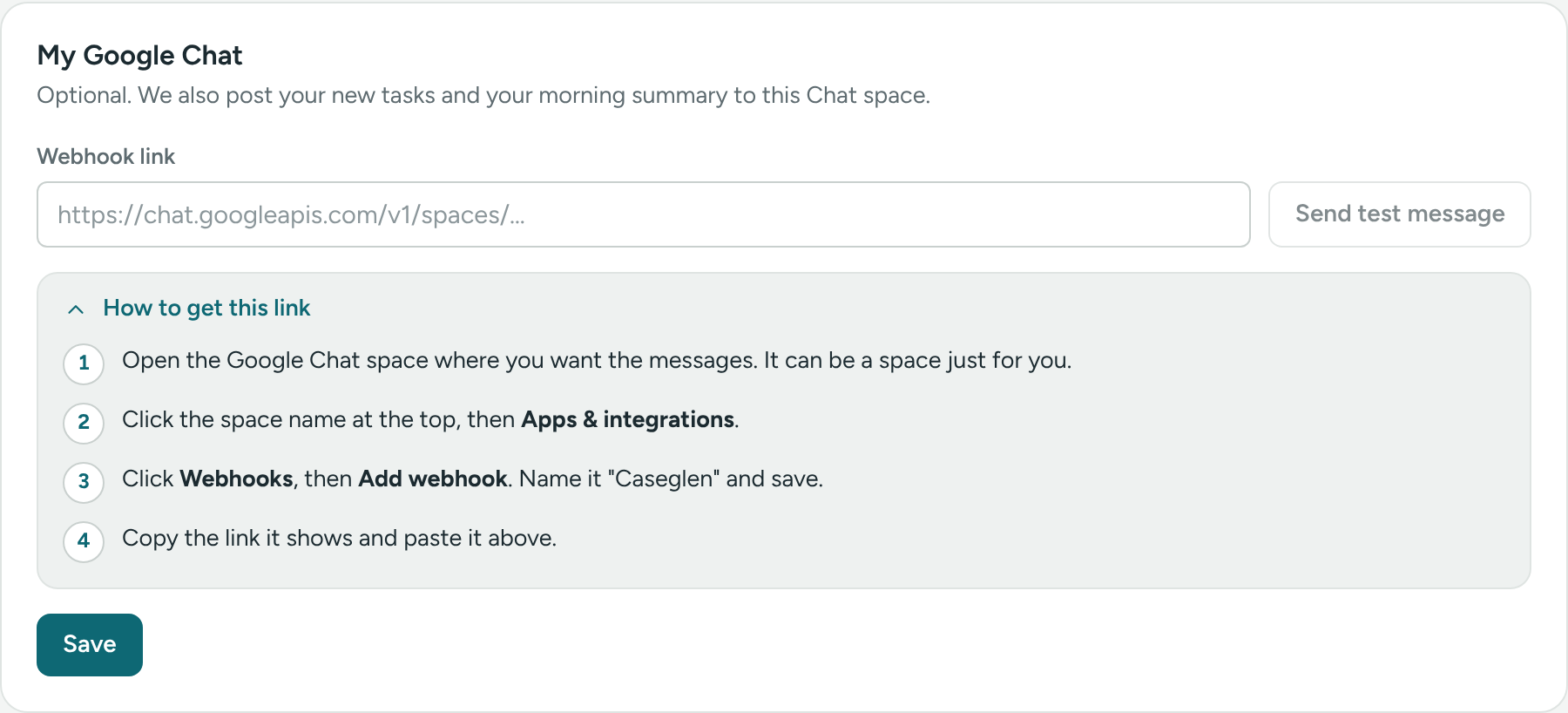
A webhook is a special web address that lets Caseglen post into a Chat space. In Caseglen, click How to get this link under the box for the same steps.
- Open Google Chat and go to the space where you want the messages. It can be a space just for you.
- Click the space name at the top.
- Click Apps & integrations.
- Click Webhooks, then Add webhook.
- Give it a name, for example "Caseglen", and save.
- Copy the address it shows. It starts with
https://chat.googleapis.com/.
Step 2: Paste it in Caseglen
For yourself:
- Click Settings → My account.
- Under My Google Chat, paste the address in Webhook link.
- Click Send test message. A test message should appear in your Chat space.
- Click Save.
You'll see "Google Chat connected."
For the office (directors):
- Click Settings → Organization & emails.
- In the Google Chat card, paste the address in Office webhook link.
- Click Send test message, then Save at the bottom of the tab.
Turn it off
Delete the address from the box and click Save. You'll see "Google Chat removed."
Troubleshooting
- "That isn't a Google Chat webhook address" – make sure you copied the whole address, starting with
https://chat.googleapis.com/. - "Google Chat didn't accept the message" – the webhook may have been deleted from the space. Create a new one and paste it again.
Chat messages follow your agency's email detail setting. With Minimal, clients show as initials.
If something is unclear or doesn’t match what you see on screen, tell us and we’ll fix it.