The log: notes, calls and everything that happened
Log phone calls and other contacts with the date they happened, write notes, pin what matters, and turn a call into a task.
Updated
On this page
Every profile has a Log: the person's full history, newest first, with when each thing happened and who did it.
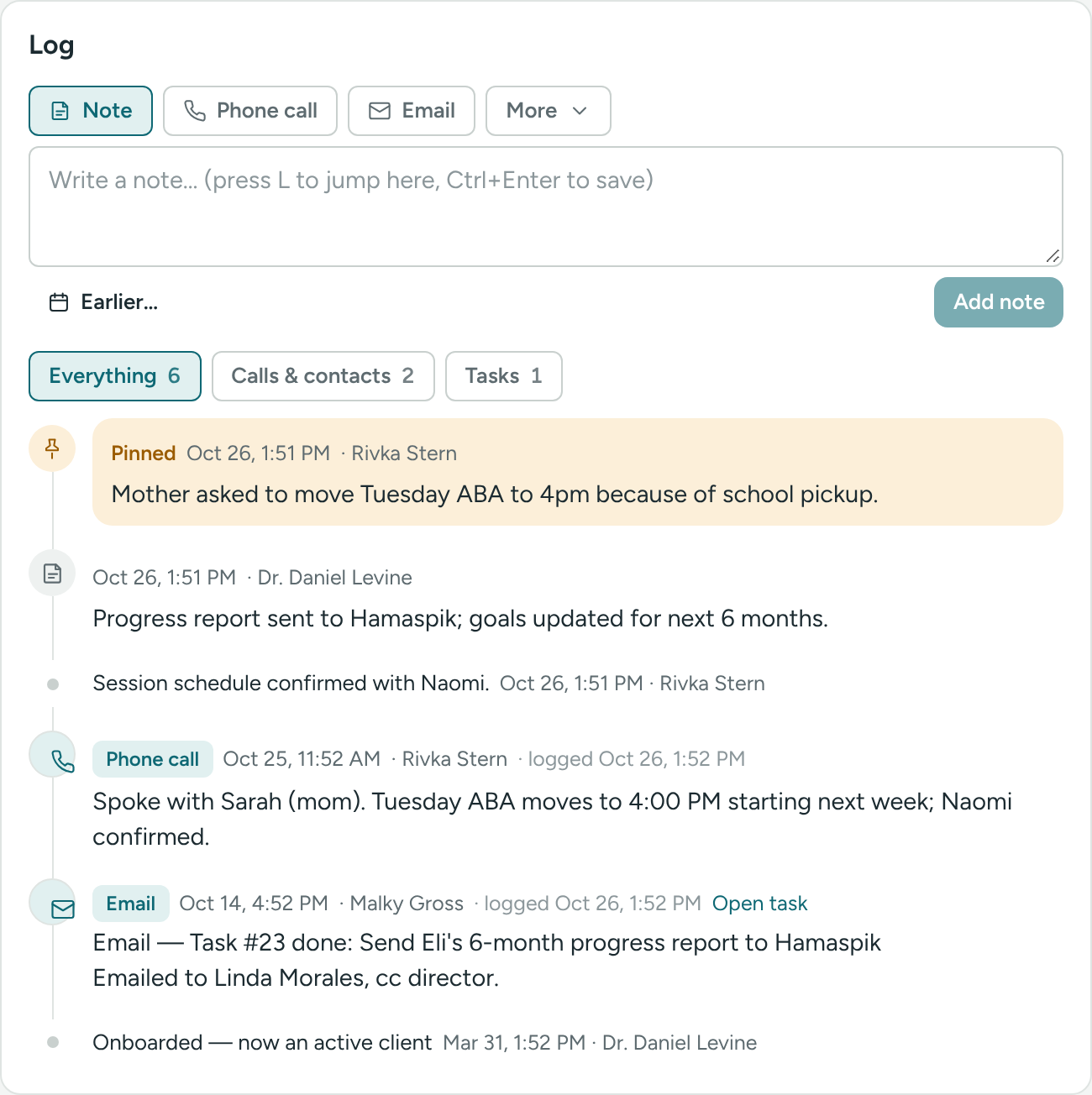
Log a phone call (or other contact)
- Open the profile. Press L to jump to the log box.
- Above the box, click Phone call or Email. For anything else, click More and choose Text message, Meeting, Session, Home / school visit or Other.
- Type what happened, for example "Spoke with mom, she agreed to Tuesday 4pm."
- If it happened earlier, click Earlier… and pick the date and time. Click Now to go back.
- Click Log phone call (the button follows what you picked), or press Ctrl + Enter.
If you logged it more than an hour after it happened, the line also says when it was written down.
Turn a call into a task
After you log a call, a line says Call logged · Create task from this.
- Click Create task from this.
- The New task window opens about this person, with what you wrote in the description.
- Add a title and a category, and click Create task.
Click × to dismiss the line.
Add a note
Leave Note selected, type, and click Add note.
Tasks go into the log automatically
When a task is created, marked done, reopened or deleted, Caseglen writes it into the log of everyone on the task: the person it's about and everyone included, usually the client's care team.
A done task reads like "Phone call — Task #14 done: Call about insurance", with the note under it. Each task line has an Open task link.
Show only some lines
Use the buttons above the timeline: Everything, Calls & contacts and Tasks. Each shows how many lines it has. A button only shows when it has lines.
Pin or delete
Pinned notes stay at the top with a pin. Use them for things everyone should see first, like "Do not call before 10am". A pinned note on a therapist also shows as a warning when someone adds them to a care team.
- Click the ⋯ button on the line.
- Click Pin to top (or Unpin), or Delete and confirm.
You can pin and delete what you wrote. A Director can do it for anyone's notes.
Automatic lines
These are added for you and can't be changed, so the history stays trustworthy:
- "Added as potential client", "Onboarded — now an active client", "Marked inactive", "Reactivated — active client", "Moved back to potential client"
- "Assigned therapist Dana Cohen" / "Removed peer Avi Stern" (on both people)
- "Task #14 created: …", "Task #14 done: …", "Task #14 reopened: …", "Task #14 deleted: …"
Good habits
- Log every call, even short ones. The date is what matters later.
- Don't paste in documents or records that belong in your clinical system.
If something is unclear or doesn’t match what you see on screen, tell us and we’ll fix it.