Task categories
How categories organize your tasks, and how to add, rename, recolor, reorder and delete them.
Updated
On this page
Categories group tasks by kind of work, for example Case setup or Follow-up meeting. Every new task needs one. They organize the Today page, the board, the list, the calendar colors and the morning email.
The starter categories
Every new agency gets these: Intake & matching, Case setup, Scheduling, Follow-up meeting, 6-month follow-up meeting, Authorizations & insurance, Paperwork & documentation, Therapist / staffing, Family follow-up, and Headquarters. Change them to fit your office.
Add one while writing a task (everyone)
Staff and directors can both do this.
- In New task (or Edit on a task), click + New category… after the category chips.
- Type the name, for example "Annual review".
- Click Add, or press Enter. Press Esc or click Cancel to stop.
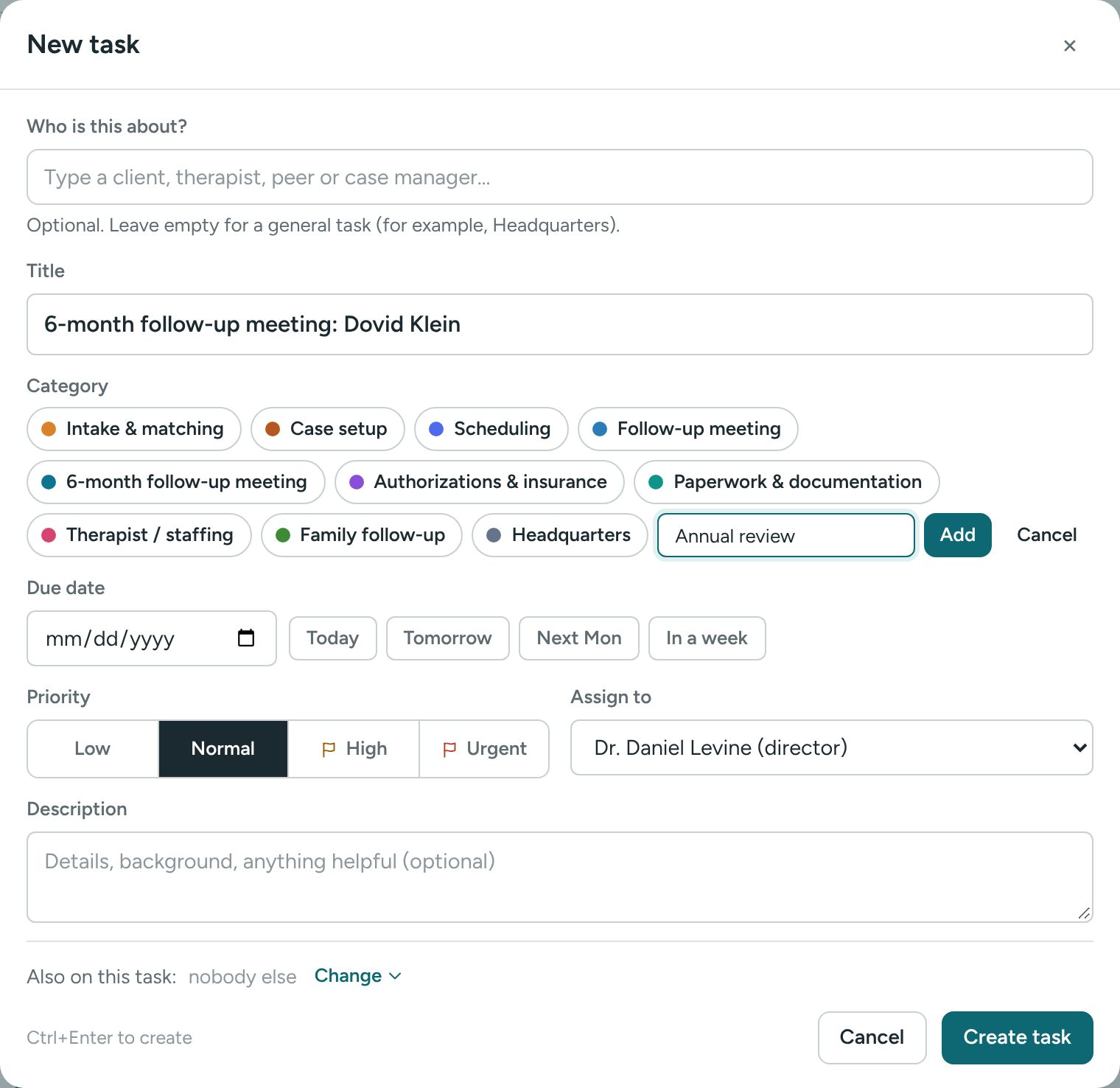
The new category is chosen for the task right away. It gets a color automatically. A director can change it later.
Manage categories (directors)
- Click Settings in the sidebar.
- Open the Categories tab.
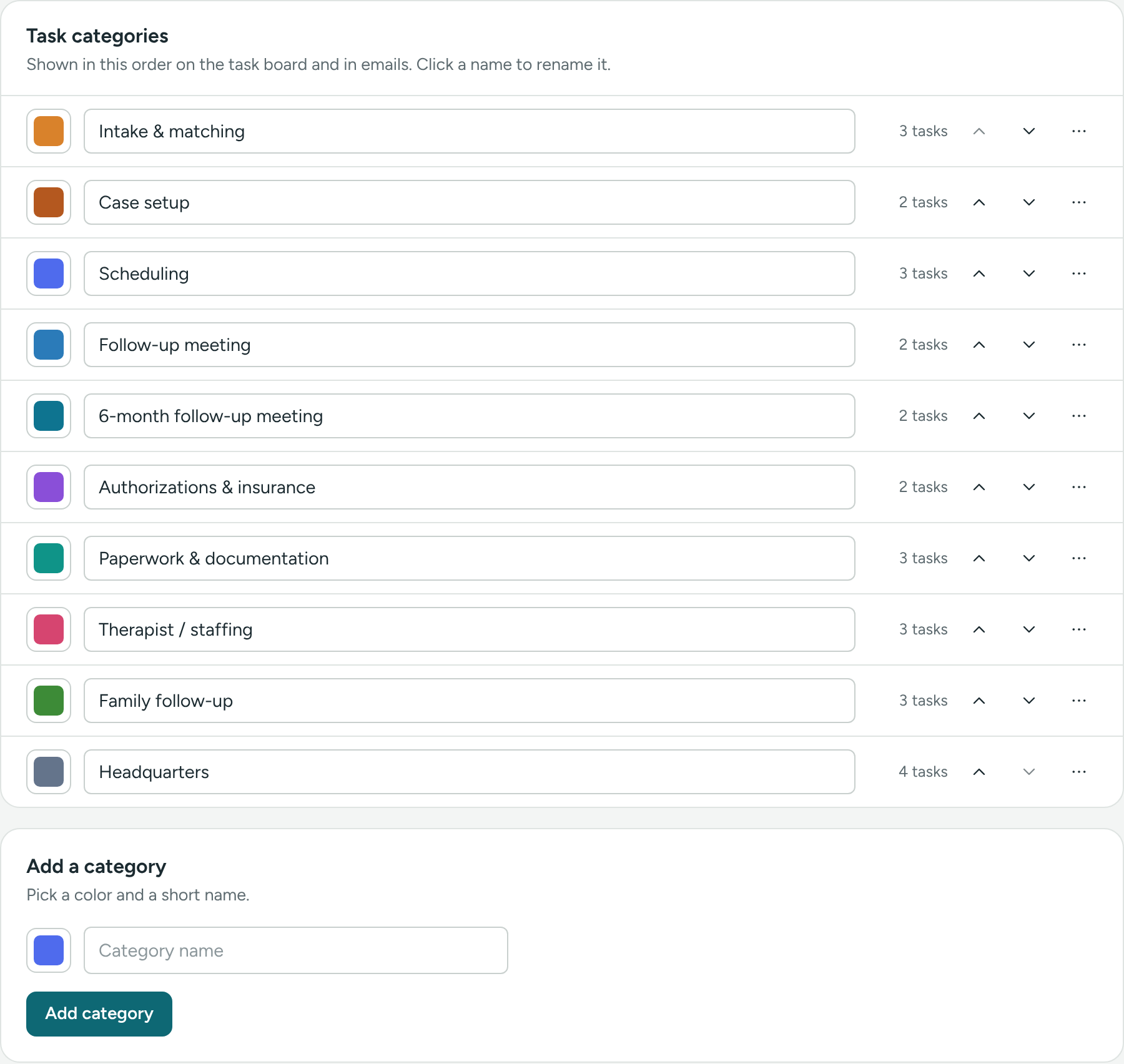
Each row has a color box, the name, how many tasks use it, up and down arrows, and a ⋯ button. The order here is the order on the board and in emails.
Add a category
- Under Add a category, click the color box and pick a color.
- Type the Category name.
- Click Add category.
Rename
Click the name, type the new one, then press Enter or click somewhere else. Press Esc to undo while typing.
Change the color
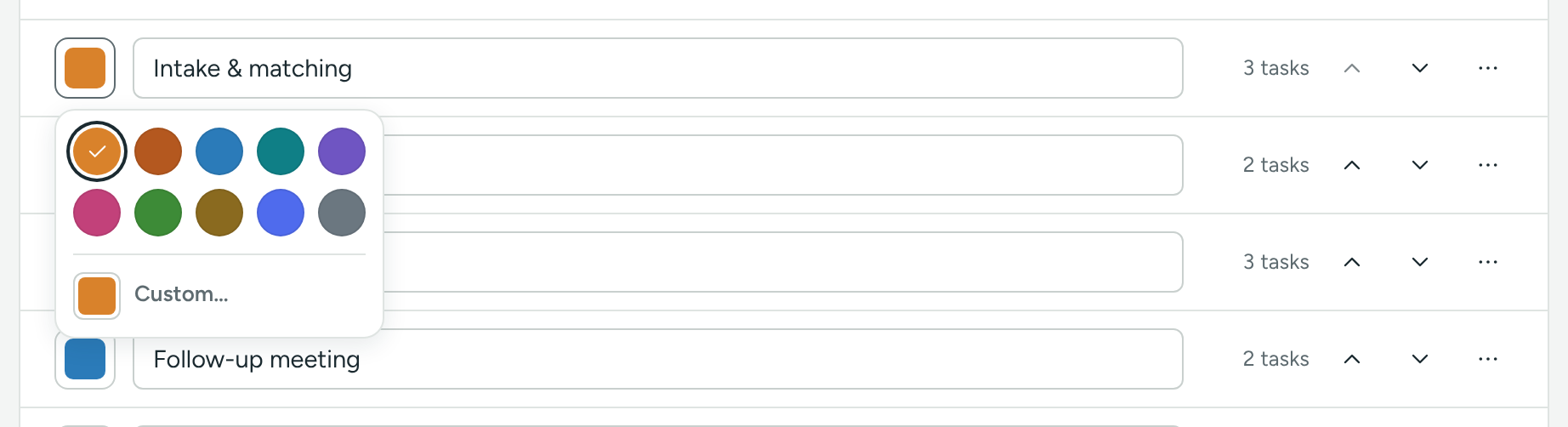
- Click the color box on the row.
- Pick one of the ten colors. The current one has a check mark.
- For any other color, click Custom….
The color saves by itself.
Change the order
Use the up and down arrows on the row.
Delete a category
- Click ⋯ on its row.
- Click Delete.
- Confirm. The message tells you how many tasks use it.
The tasks aren't deleted. They keep everything else and show under No category.
See tasks by category or by date
- Today page: use By category / By date, and the Category: menu to show one category.
- Tasks page: click View options, then use By category / By date and All categories.
Tips
- Ten or so categories is plenty.
- Use one category per kind of work, not per person.
- Pick colors that are easy to tell apart. The color shows as a stripe on each card.
If something is unclear or doesn’t match what you see on screen, tell us and we’ll fix it.