Due dates, priorities and overdue tasks
How due dates and priorities work, and where overdue tasks show up.
Updated
Due dates
Every task can have a Due date. It's optional, but tasks with a date are much harder to forget.
When you create or edit a task, pick a date or click a quick button: Today, Tomorrow, Next Mon or In a week. Click No date to clear it.
In the calendar, drag a task to another day to move its date.
On cards and lists, the due date shows as a label:
- 2 days overdue (red, with a clock)
- Due today
- Due tomorrow or Due Oct 30
- No due date
Dates follow your agency's time zone. A director sets it in Settings → Organization & emails.
Overdue tasks
A task is overdue when its due date has passed and it isn't done. You'll notice:
- In the sidebar, a red number next to Tasks counts your overdue tasks.
- On the Today page, the red part of the Your day bar, the overdue count, and Needs you now at the top of your lists.
- On the board, overdue tasks come first in each group.
- In the calendar, a small red dot on the day.
- In the morning email, they're listed first, under Overdue.
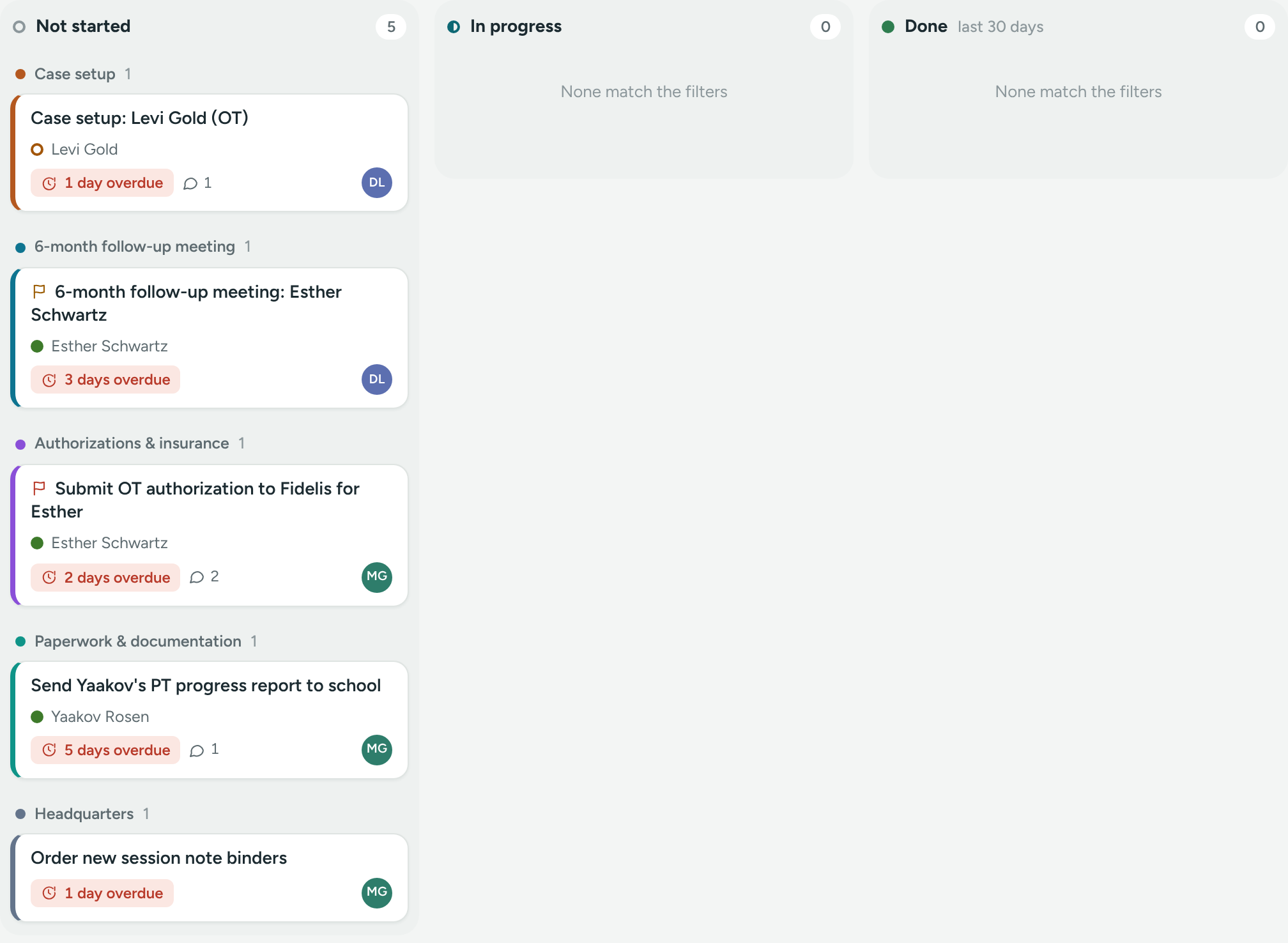
To see every overdue task in the office:
- Open Tasks.
- In Assigned to, choose Everyone.
- Click the Overdue chip.
Priorities
Each task has a Priority: Low, Normal, High or Urgent. New tasks are Normal.
- Pick it with the buttons in New task or Edit.
- High and Urgent show a flag on cards, lists and the calendar.
- With the same due date, higher priorities sort first.
- A new-task email for an Urgent task says so at the top.
Keep Urgent for things that truly can't wait, like a family without services tomorrow. If everything is urgent, nothing is.
Tasks with no date
They come last in each group, and in the No due date list on the Today page. The morning email gives a count without listing them. To find them, click the No date chip on the board, or No date (N) in the calendar.
If something is unclear or doesn’t match what you see on screen, tell us and we’ll fix it.