Make a client inactive or reactivate
Close a case from the status menu without losing its history, and bring it back later.
Updated
On this page
When services end, make the client Inactive. Their profile, log, care team and task history are all kept. You can bring them back at any time.
Make a client inactive
- Open the client's profile.
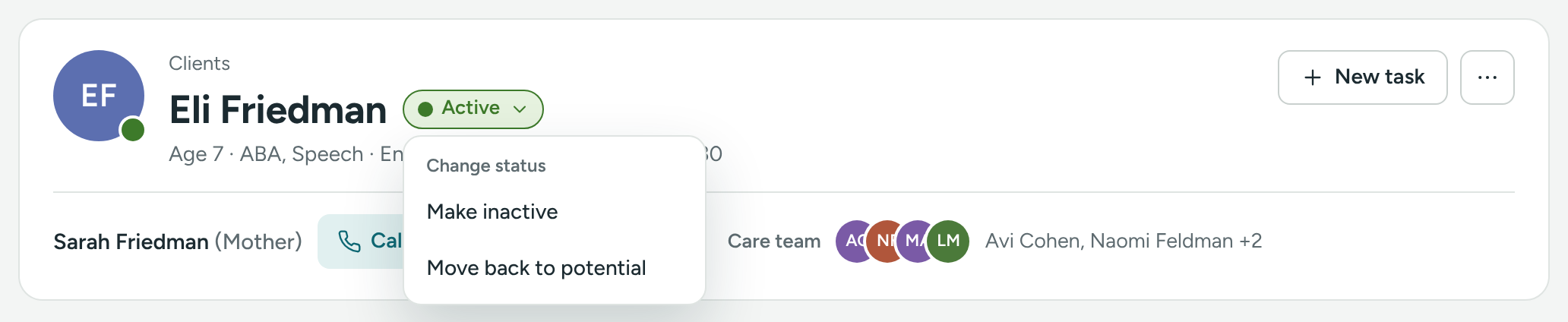
- Click the status button next to their name, for example ● Active ▾.
- Choose Make inactive.
- Confirm.
The status button now says Inactive with a dashed ring. The client moves to Clients → Inactive, and "Marked inactive" is added to their log.
Potential clients can be made inactive the same way, for example when a family decides not to go ahead.
Reactivate a client
- Click Clients in the sidebar and open the Inactive tab.
- Open the client's profile.
- Click the status button (Inactive ▾).
- Choose Reactivate.
They become an Active client again, and "Reactivated — active client" is added to their log.
Inactive or delete?
Only a Director can delete. It's in the ⋯ button at the top right: Delete…. It removes the client for good, with their log and care-team links. Tasks about them lose the link. It can't be undone.
What happens to the care team and tasks?
- The care team stays linked, so you can see who worked with the client.
- Open tasks stay open. Finish or delete them if they're no longer needed.
- The client no longer counts in a therapist's Active clients number.
Therapists, peers and case managers
The same status button works on their profiles too, with Make inactive and Reactivate. An inactive therapist moves to the Inactive tab of the list, and keeps their profile and history. See Add and edit a therapist, peer or case manager.
If something is unclear or doesn’t match what you see on screen, tell us and we’ll fix it.