Add and edit a therapist, peer or case manager
Add someone new, update their details, make them inactive, or delete them.
Updated
On this page
The steps are the same for therapists, peers and case managers. We'll use a therapist as the example.
Add a therapist
- Click Therapists in the sidebar.
- Click Add therapist at the top right.
- Enter the First name. It's the only required field.
- Fill in what you know:
- Last name
- Phone and Phone 2
- Discipline / credentials – for example "Speech therapist, CCC-SLP".
- Language and Address
- About
- Click Add therapist.
You'll go straight to their new profile.
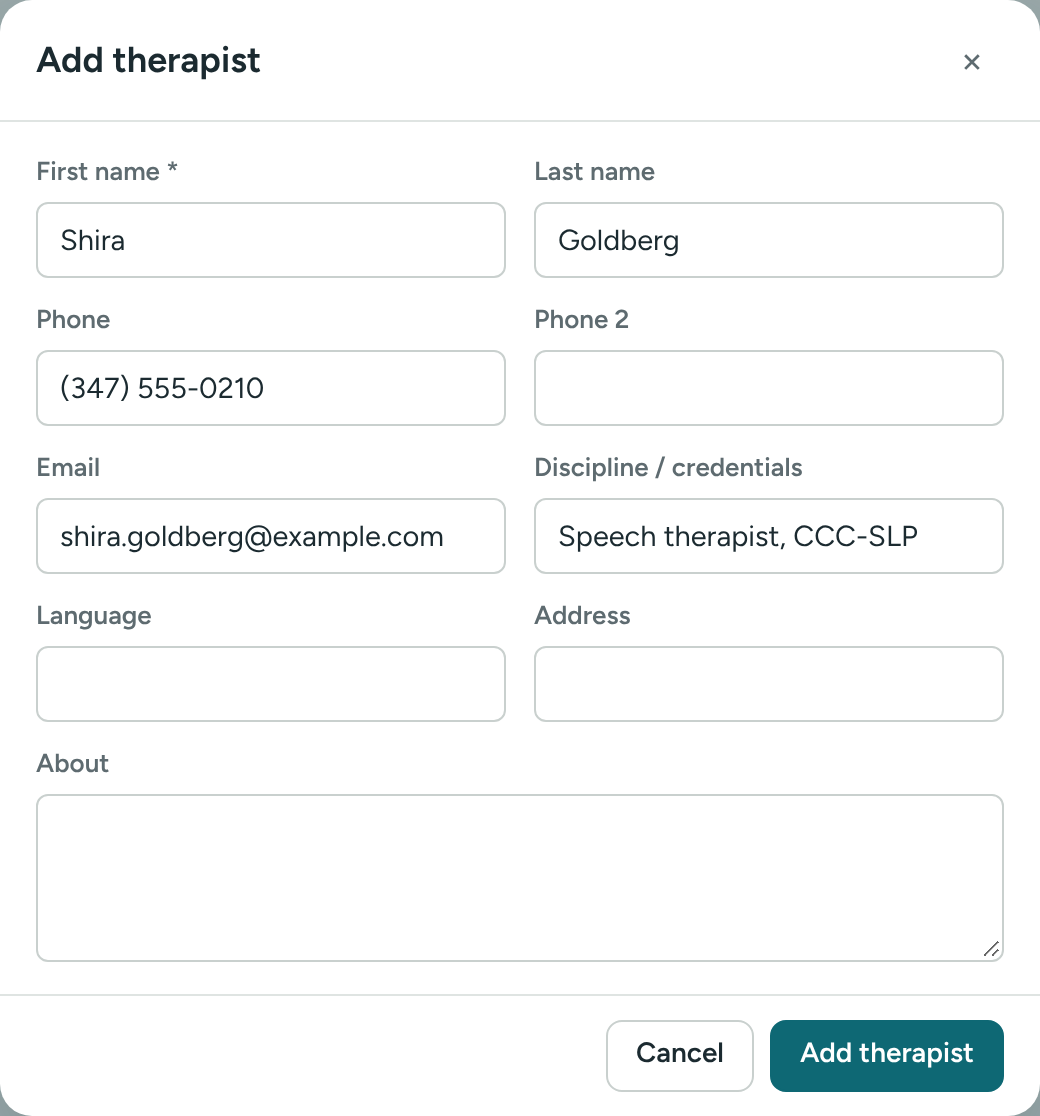
For a peer, the field is called Role instead of Discipline. For a case manager, there's an Organization / agency field instead, and no Language field.
Edit someone's details
- Open their profile (click their name in any list, or use the search bar).
- Click the ⋯ button at the top right.
- Click Edit details.
- Make your changes and click Save.
Make someone inactive
When a therapist leaves or takes a long break:
- Open their profile.
- Click the status button next to their name (Active ▾).
- Choose Make inactive and confirm.
They move to the Inactive tab. Their log, history and client links are kept. To bring them back, choose Reactivate in the same menu.
Delete someone
Only a Director can delete people.
- Open the profile.
- Click ⋯, then Delete…, and confirm.
Create a task about this person
On any profile, click New task, or press N. The person is already picked. See Create a task.
If something is unclear or doesn’t match what you see on screen, tell us and we’ll fix it.