Sign in, sign out and reset your password
How to get in, how to leave safely, and what to do if you forgot your password.
Updated
On this page
Sign in
- Go to the website and click Sign in (or go straight to the sign-in page).
- Enter your Email and Password.
- Click Sign in.
You'll land on the Today page.
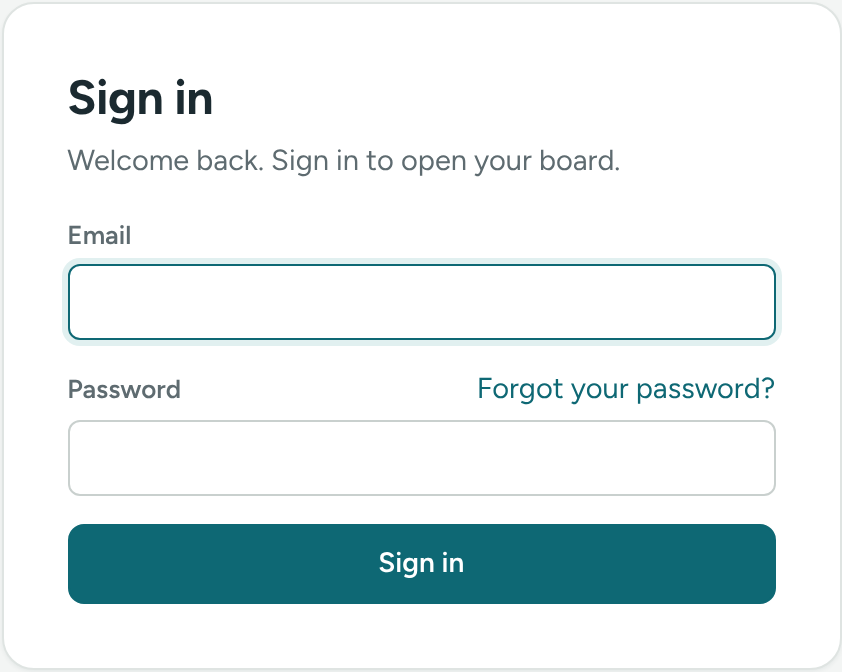
Forgot your password?
- On the sign-in page, click Forgot your password?
- The page changes to Reset your password. Enter your email.
- Click Send reset link.
- Open the email and click the link.
- Choose a new password, type it again, and click Save and continue.
For your security, we show the same message whether or not the email has an account.
The link works only once, and only for a limited time. Always use the newest one.
On Set your password, check the email address in the box at the top. If it isn't yours, click Sign out instead of choosing a password.
Change your password while signed in
- Click Settings in the sidebar.
- On My account, find Change password.
- Type the new password in New password and again in Type it again.
- Click Change password.
Sign out
At the bottom of the sidebar, next to your name, click Sign out.
"This account has no access right now"
If the sign-in page says "This account has no access right now, or isn't part of an agency yet", a director has removed your access. Ask your director to click Give access back next to your name in Settings → Team.
"Your free trial has ended" or "Your account is paused"
Your agency's free trial is over, or its account isn't active right now. Nothing has been deleted. Your director can contact us at support@caseglen.com. Once it's sorted out, click Try again.
Still can't get in?
- Check that you are using the same email address the invite was sent to.
- Make sure Caps Lock is off.
- Try the newest reset email. Older links stop working.
If nothing works, email us at support@caseglen.com.
If something is unclear or doesn’t match what you see on screen, tell us and we’ll fix it.