Invite your office staff
Send an invitation email so each staff member gets their own sign-in.
Updated
On this page
Everyone in your office should have their own sign-in. That way tasks can be assigned to them, they get their own emails, and the log shows who did what.
Only a Director can invite people.
Send an invite
- In the sidebar, click Settings.
- Open the Team tab.
- Under Invite someone, fill in:
- Name
- Role – choose Staff or Director.
- Click Send invite.
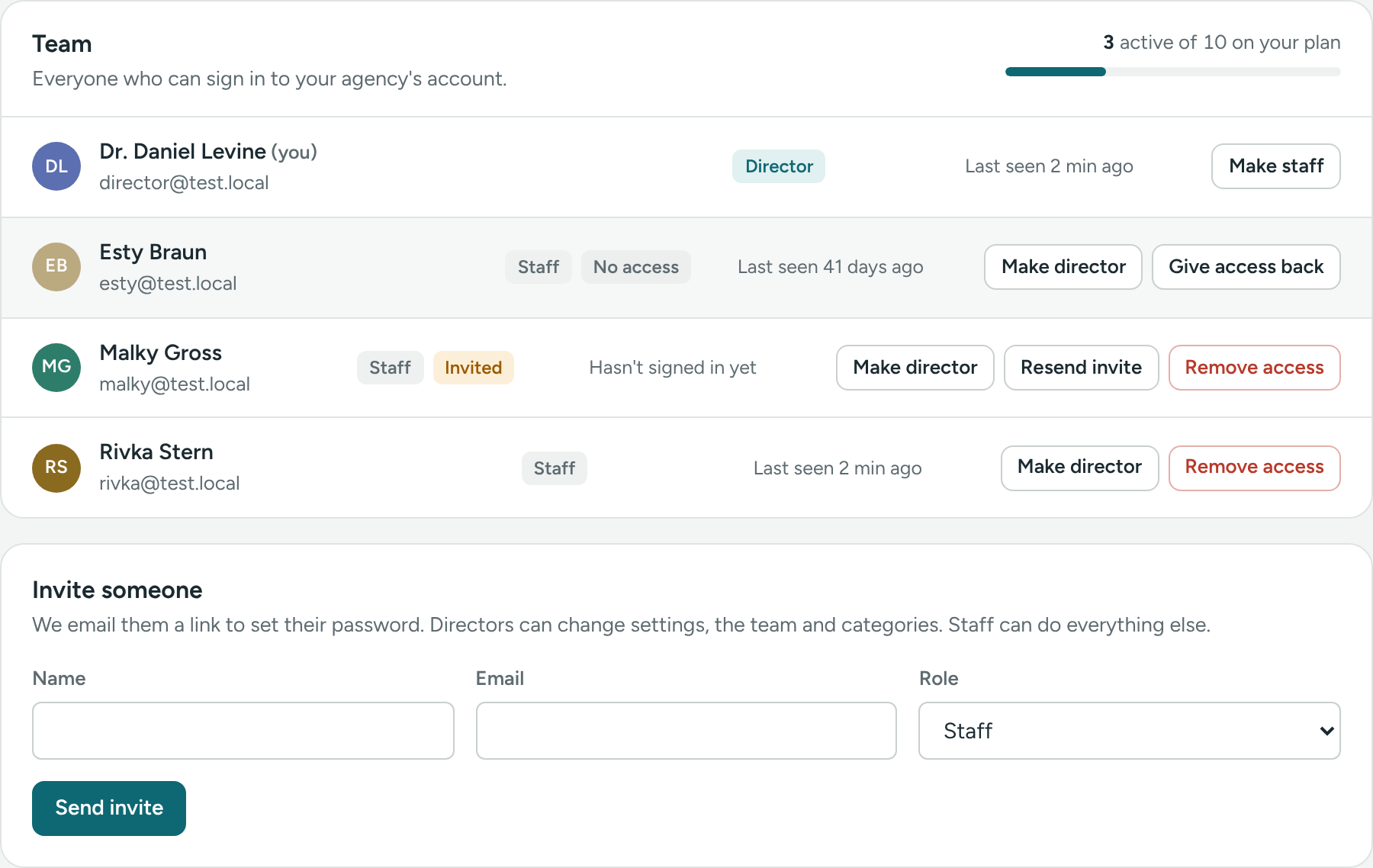
You'll see Invite sent to and their address. They now appear in the team list with an Invited label until they sign in.
What your staff member does
- They open the email and click the link.
- On Set your password, they check their name and choose a password (at least 8 characters).
- They click Save and continue and they're in.
How many people can I invite?
Each plan includes a number of staff accounts. Everyone with access counts, directors too. People marked No access don't count. The Team tab shows how many seats you use, for example 4 active of 5 on your plan. During the free trial you can have up to 10. Network plans have no limit.
If your team is full, you'll see "Your plan includes up to … staff accounts. Contact us to upgrade." Email us at support@caseglen.com to move to a bigger plan, or click Remove access for someone who has left to free a seat.
Staff or Director?
- Staff can do all the daily work: add and edit clients and people, write notes, create and finish tasks.
- Directors can also manage the team, task categories and organization settings, and delete people.
You can change someone's role later. See Team members and roles.
If the invite didn't arrive
In the team list, people marked Invited have a Resend invite button. Click it to send a fresh link.
If you see That email already has an account, that address is already in use. Contact us at support@caseglen.com and we'll help.
When someone leaves
Don't delete their account. Click Remove access instead, so their history stays. See Remove or give back access.
If something is unclear or doesn’t match what you see on screen, tell us and we’ll fix it.