The Today page
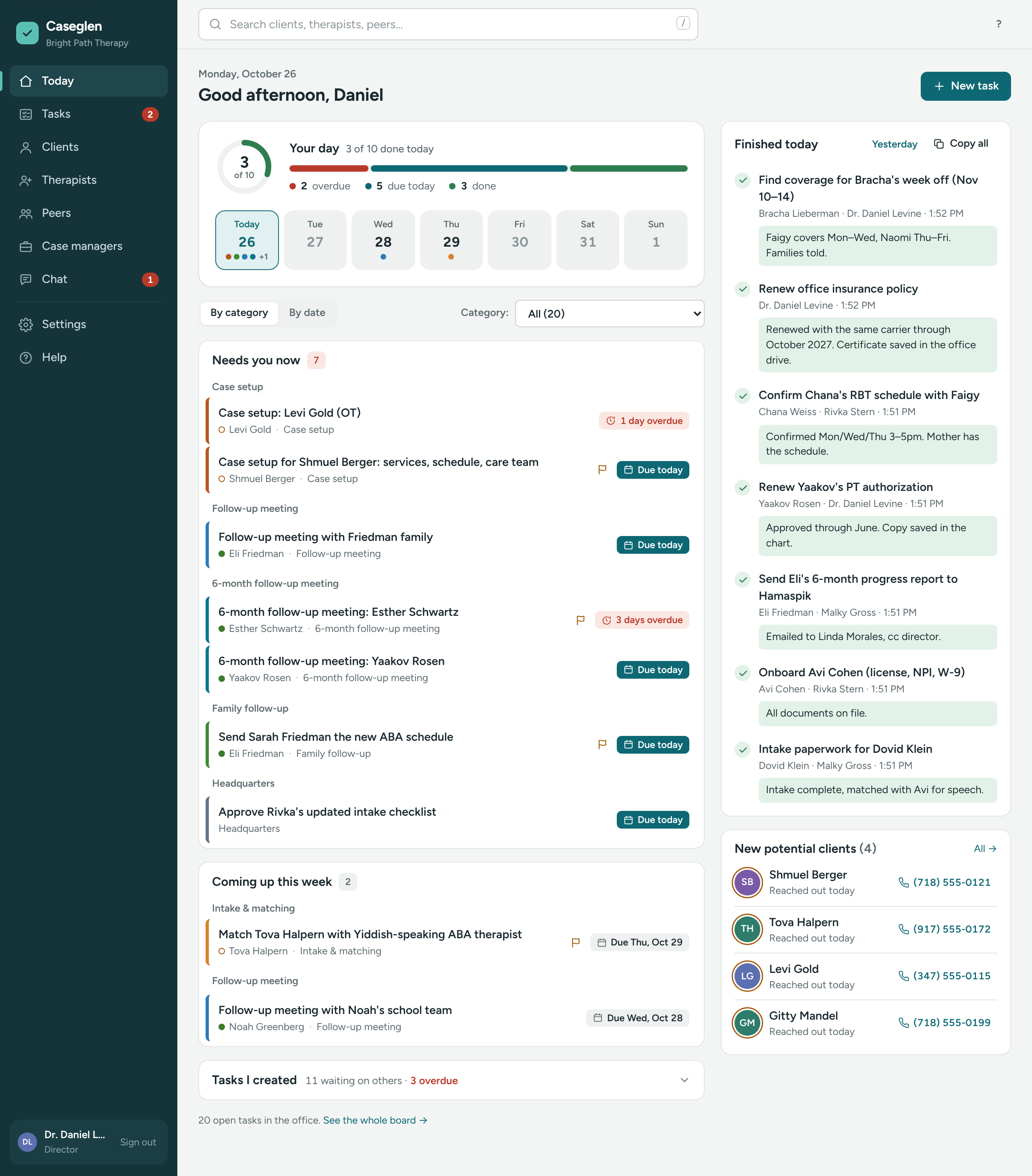
Your day at a glance, what needs you now, what was finished today, and new potential clients.
Updated
Today is the first page you see after signing in. It shows your tasks, what the office finished, and families waiting for a call back. The greeting and the date follow your agency's time zone.
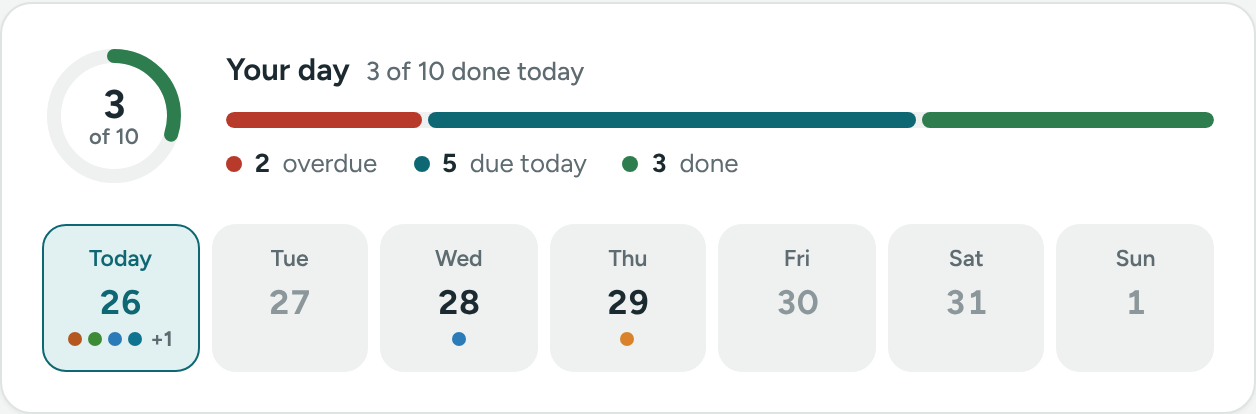
Your day
The panel at the top counts your work for today:
- The ring shows how many you've finished out of everything that needs you today, for example 2 of 5. It counts your overdue tasks, your tasks due today, and the ones you finished today.
- The bar under it shows the same thing in colors: overdue (red), due today and done.
- N overdue, N due today and N done are links. The first two open the task board already filtered. done jumps to Finished today.
- The week strip shows today and the next six days. Each dot is one of your tasks, in its category color. Point at a day to see the titles. Click a day to open your tasks for this week.
Your task lists
Above the lists:
- By category / By date – grouped under category headings, or one list in due-date order.
- Category: – pick one category to see only those tasks. The number shows how many you have. All shows everything again.
The lists:
- Needs you now – overdue and due today. The count turns red when something is overdue.
- Coming up this week – due in the next six days.
- No due date – the first three, then Show N more.
- Tasks I created – tasks you made for other people, with who has them. The line shows N waiting on others and how many are overdue. Click it to open the list.
Click any task to open it. At the bottom, See the whole board → opens everyone's tasks.
Finished today
This card lists tasks marked done today, with who finished them, when, and their note. Directors see everything finished in the office. Staff see tasks they created, were given or finished.
- Click Yesterday to see yesterday's list, and Today to come back.
- Click Copy all to copy a plain-text summary. Paste it into an email or a message.
New potential clients
The newest potential clients, with how long each family has been waiting (Waiting 4 days turns amber, then red). Tap the phone number to call. All → opens the Potential tab.
On a phone
Finished today and New potential clients fold into one line each. Tap to open them. New task is the round + button in the corner. On a computer, use the New task button at the top right, or press N.
If something is unclear or doesn’t match what you see on screen, tell us and we’ll fix it.