Find your way around
The sidebar, the search bar, the keyboard shortcuts and the "?" button.
Updated
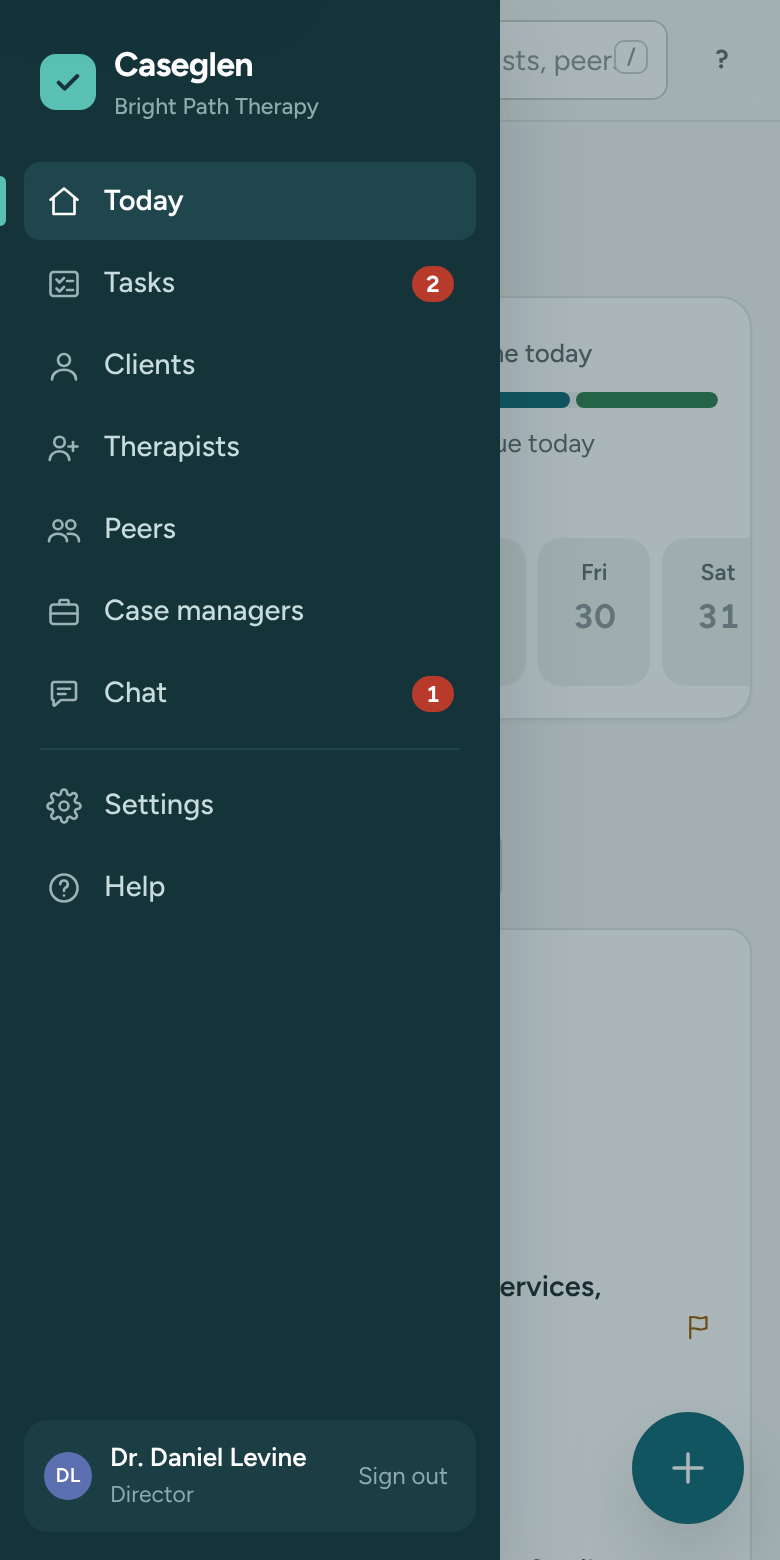
Every page in Caseglen has the same frame: a sidebar on the left and a search bar at the top.
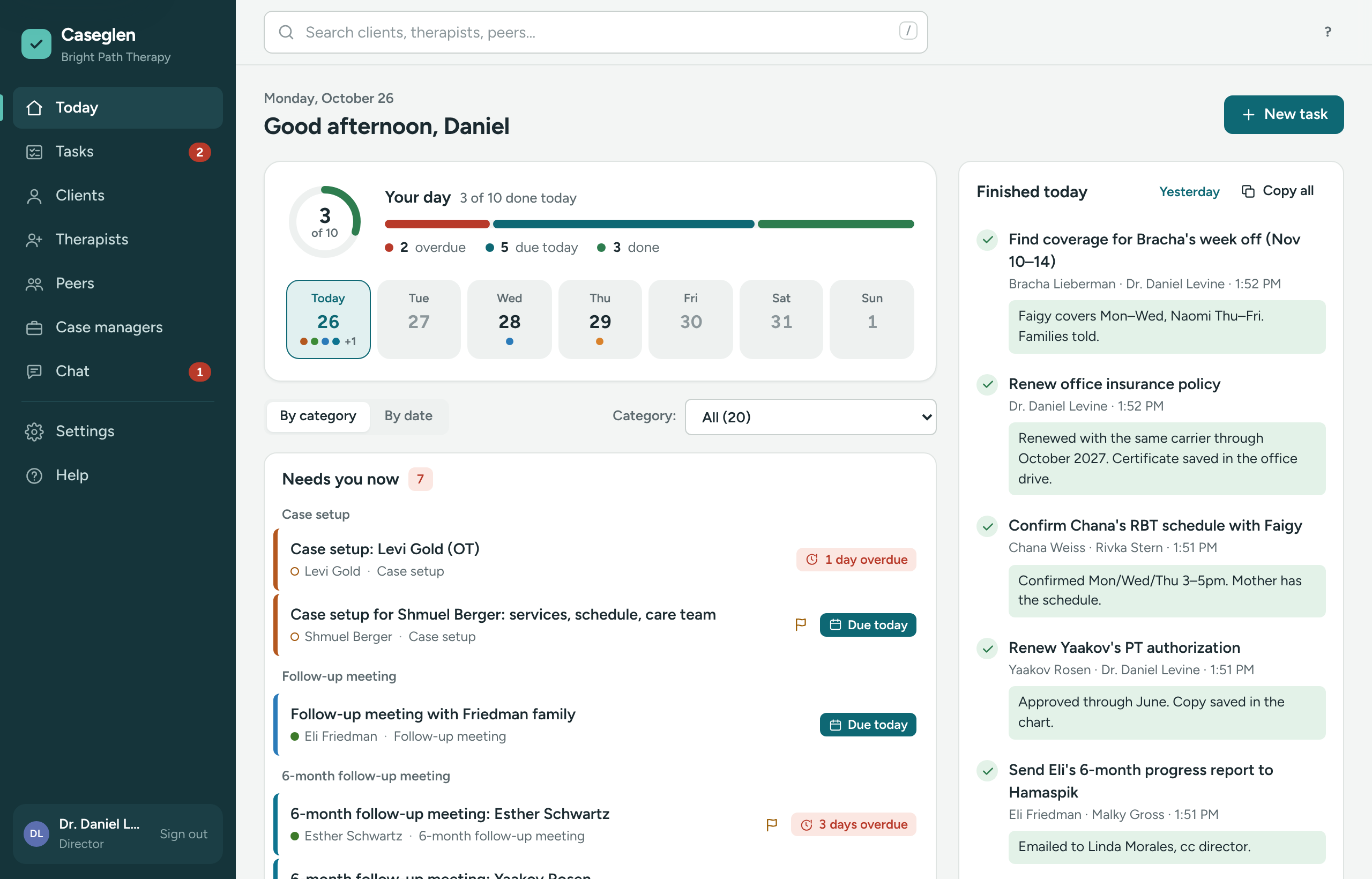
The sidebar
From top to bottom:
- Today – your home page. See The Today page.
- Tasks – the office task board. A red number shows how many of your tasks are overdue.
- Clients – split into Potential, Active and Inactive tabs.
- Therapists, Peers and Case managers – the people you work with.
- Chat – the office chat. A red number shows messages you haven't read yet. See Team chat.
- Settings – your account, and for directors the team, categories and email options.
- Help – opens this help center in a new tab.
- Install app – shows only when your browser can install Caseglen as an app. See Install Caseglen on your phone, tablet or computer.
Your agency name is under the Caseglen logo. At the bottom you'll see your name, your role (Director or Staff) and Sign out. During the free trial, a thin bar above your name shows the days left.
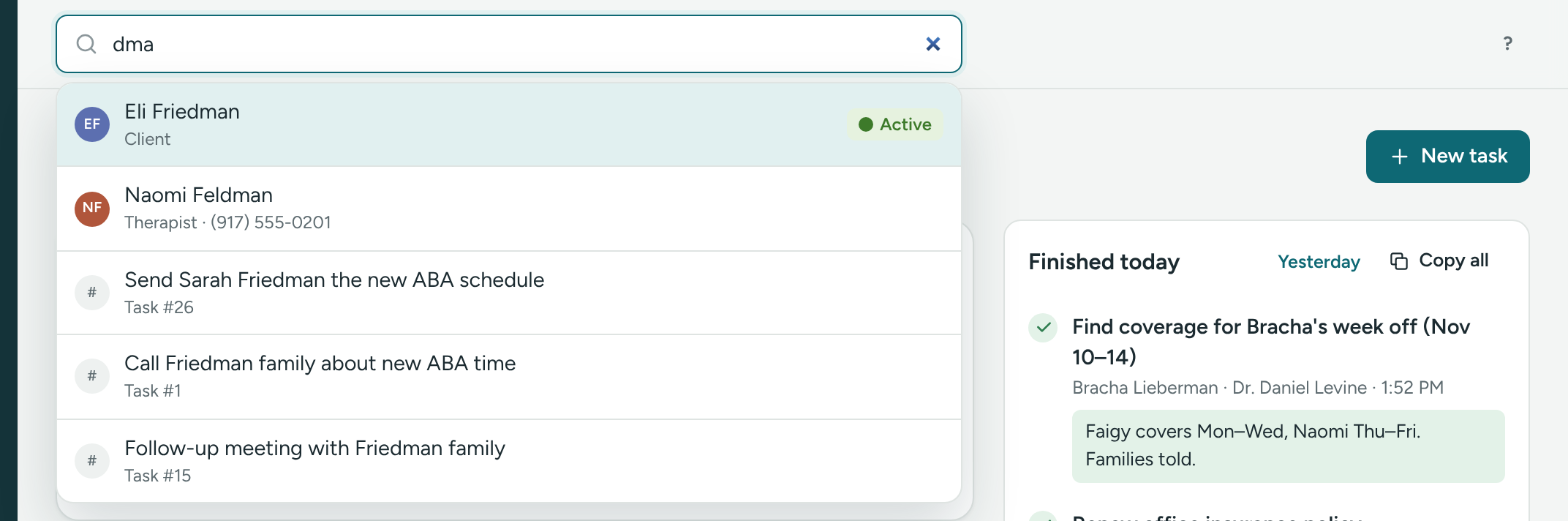
The search bar
The search bar finds anyone in your agency, and open tasks.
- Click Search clients, therapists, peers…, or press / on any page.
- Type part of a name, a phone number or an email.
- Results show as you type. People show their kind (for example Therapist) and phone. Clients also show their status. Tasks show as Task #14.
- Use ↑ and ↓ to move, and Enter to open. Esc closes the list.
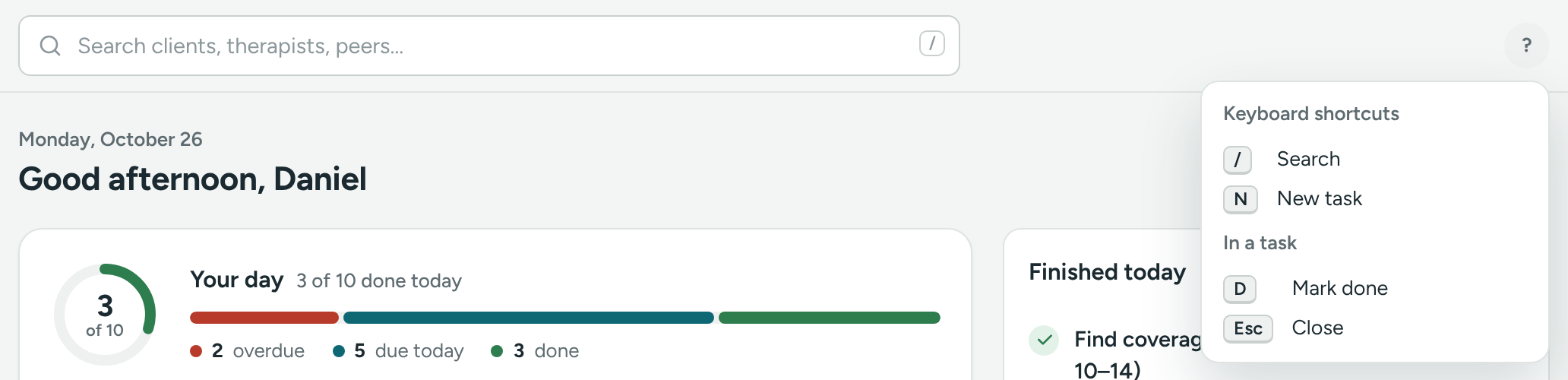
Keyboard shortcuts
Shortcuts work when you aren't typing in a box.
- / – jump to the search bar.
- N – new task. On a person's profile, the task is already about that person.
- L – on a profile, jump to the Log box to write a note or log a call.
- D – in an open task, jump to What was done? Then press Ctrl + Enter to mark it done.
- Esc – close the open task, window or menu.
Forgot one? Click the round ? at the top right of any page. It lists the shortcuts. Click it again, or press Esc, to close it.
Lists and filters
Each list page (Clients, Therapists and so on) has a filter box above the table. It only filters that list. The search bar at the top searches everything.
If something is unclear or doesn’t match what you see on screen, tell us and we’ll fix it.