Your account settings
Change your name and password, choose your emails, and connect your own Google Chat.
Updated
Everyone has a My account tab, whether you're a director or staff.
- Click Settings in the sidebar.
- You'll land on My account. Directors also see Team, Categories and Organization & emails.
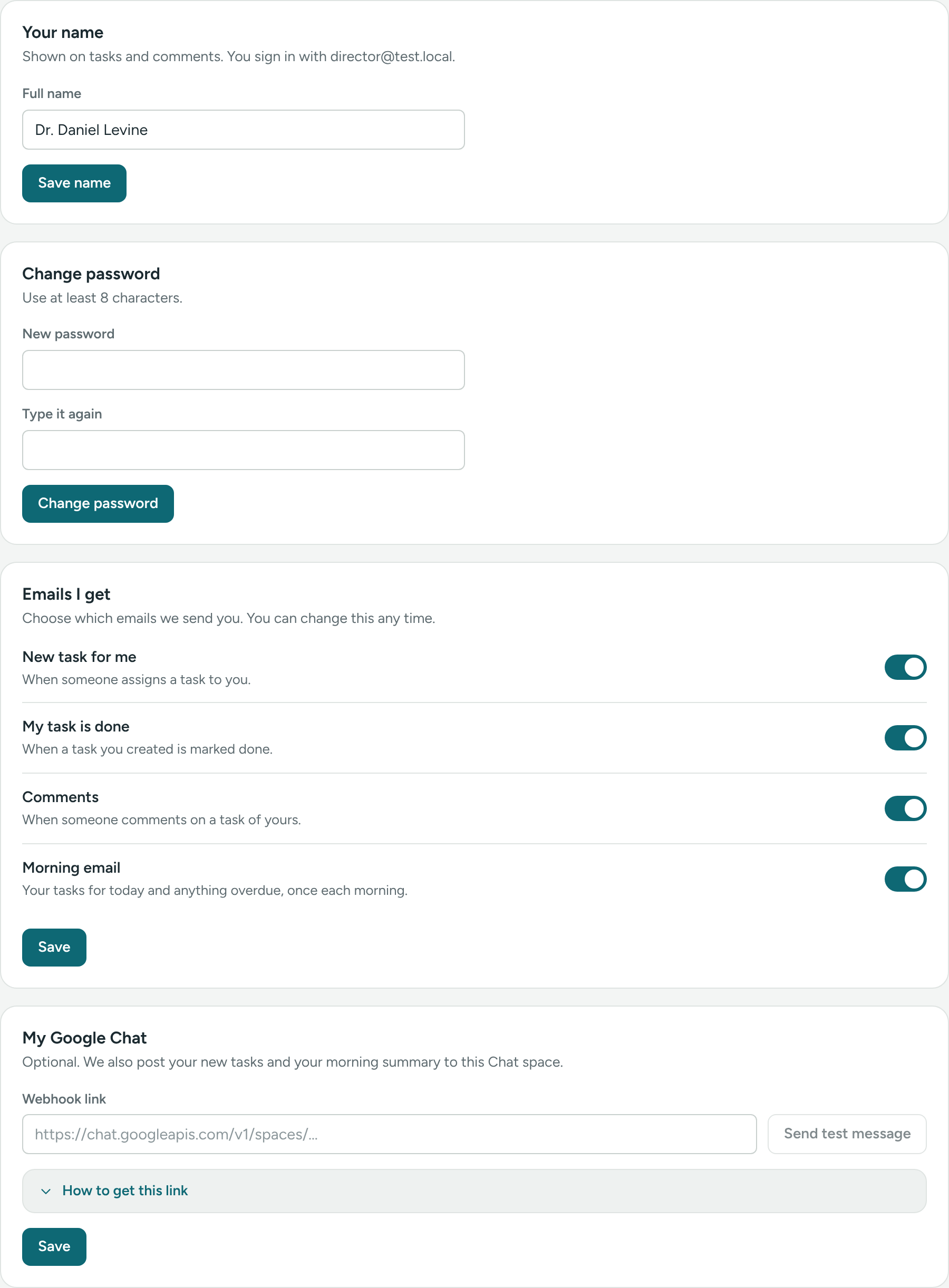
Your name
Your name shows in the sidebar, on tasks, notes and comments, and in emails.
- Under Your name, change Full name.
- Click Save name.
The line under the heading shows the email you sign in with ("You sign in with…"). To change it, ask us at support@caseglen.com.
Change password
- Under Change password, type the new password in New password.
- Type it again in Type it again.
- Click Change password.
Use at least 8 characters. A short sentence is easier to remember and harder to guess than a single word.
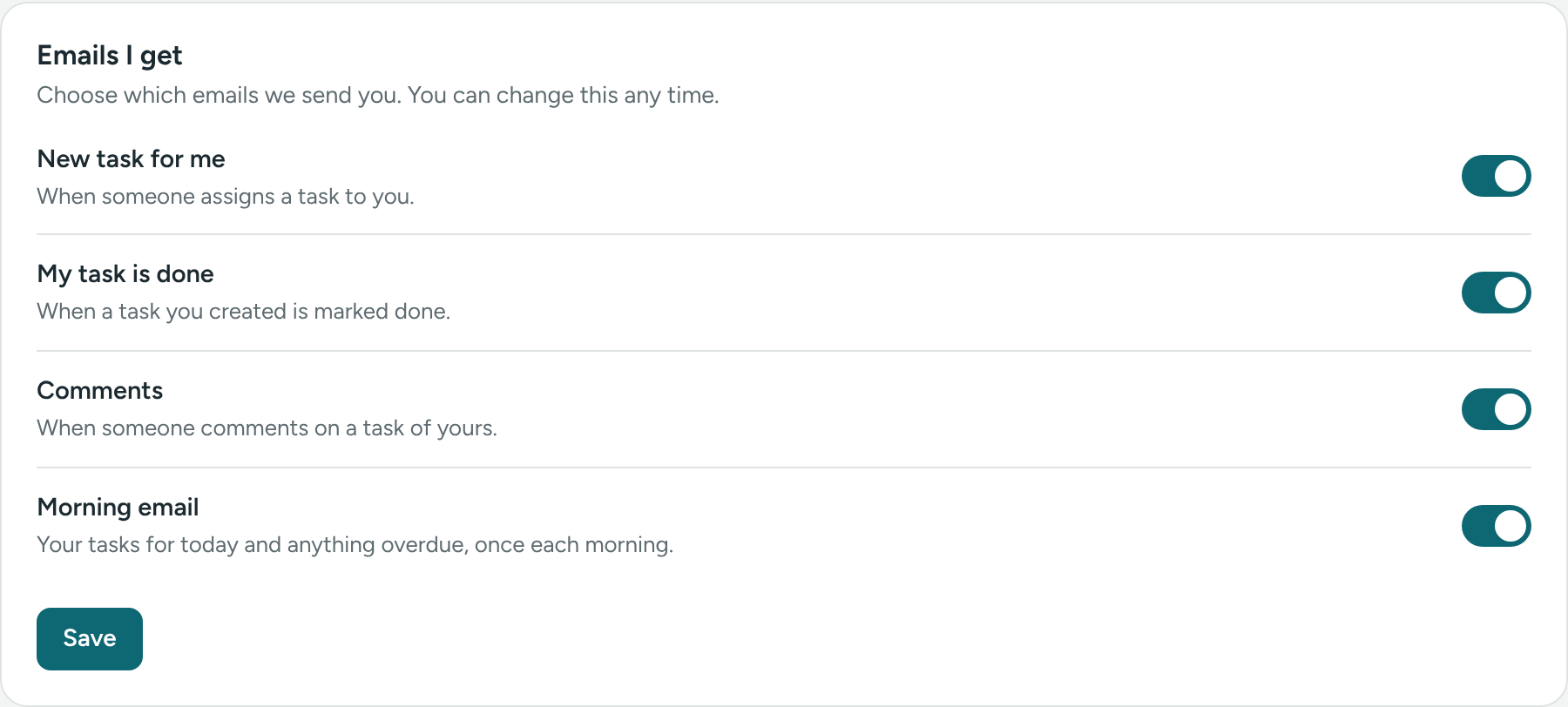
Emails I get
Each email has its own switch. A switch that's on (filled) means you get that email.
- New task for me – when someone assigns a task to you.
- My task is done – when a task you created is marked done.
- Comments – when someone comments on a task of yours.
- Morning email – your tasks for today and anything overdue, once each morning.
Turn the switches on or off, then click Save. You'll see "Email settings saved."
Learn more in Emails you get.
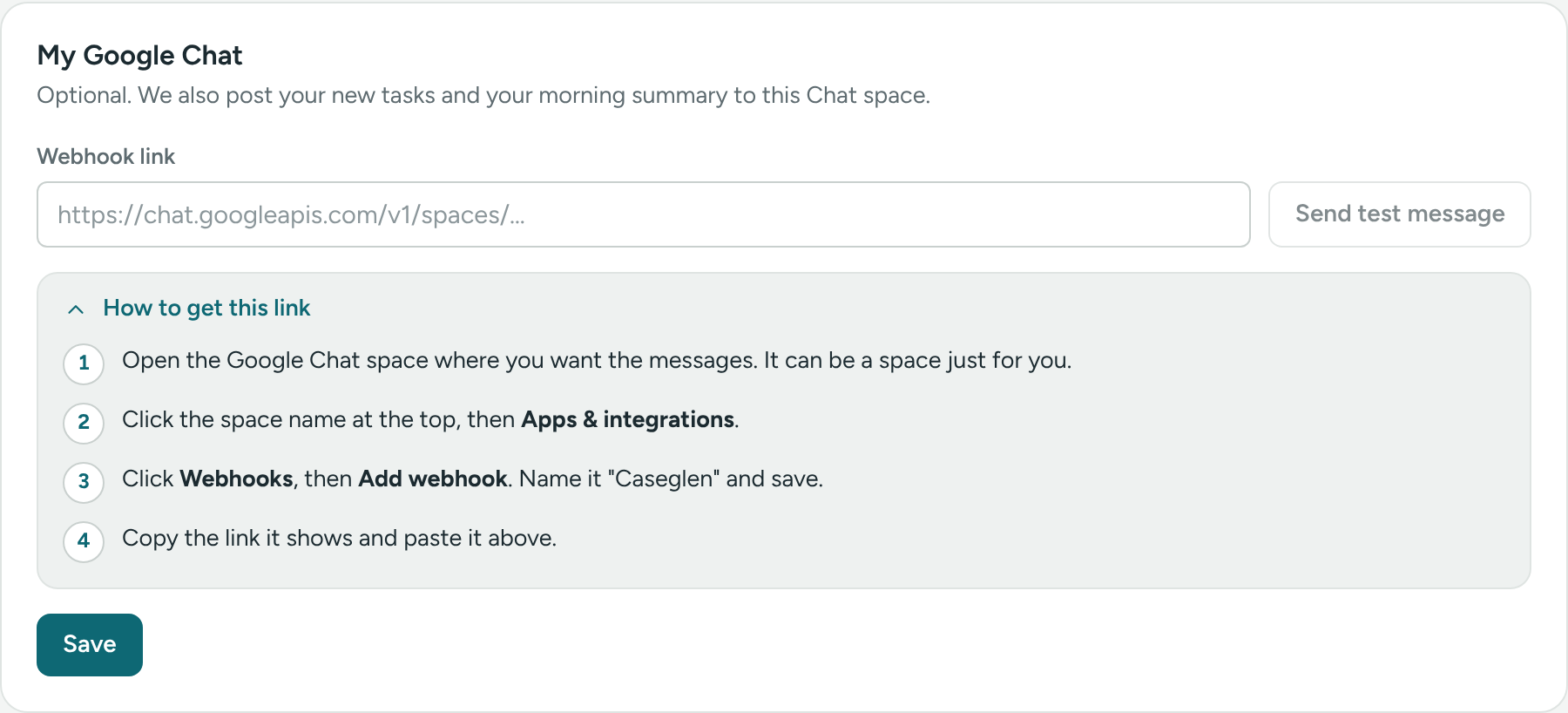
My Google Chat
Optional. Your new tasks and your morning summary are also posted to a Google Chat space.
- Click How to get this link and follow the steps in Google Chat.
- Paste the link in Webhook link.
- Click Send test message to check it works.
- Click Save. You'll see "Google Chat connected."
See Google Chat messages.
If something is unclear or doesn’t match what you see on screen, tell us and we’ll fix it.