Organization settings
The agency name and time zone, the morning email's send time, emails about tasks, and the office Google Chat.
Updated
Directors set the options that apply to the whole agency.
- Click Settings in the sidebar.
- Open the Organization & emails tab.
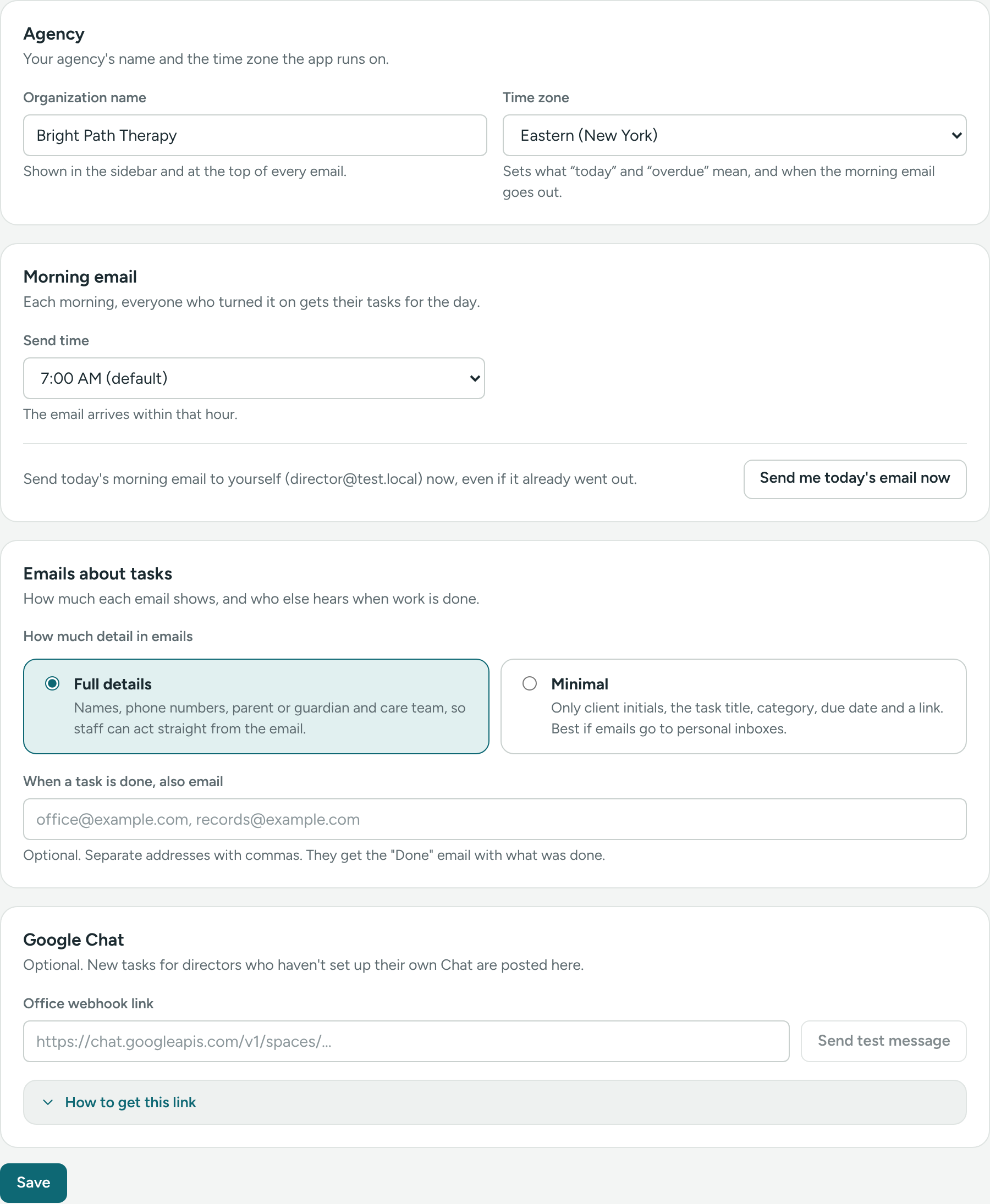
The tab has four cards. One Save button at the bottom saves them all. You'll see "Saved."
Agency
- Organization name – shown in the sidebar and at the top of every email.
- Time zone – sets what "today" and "overdue" mean, and when the morning email goes out.
Morning email
- Send time – when the morning email goes out, from 5:00 AM to 11:00 AM. The default is 7:00 AM. The email arrives within that hour.
To see it now, click Send me today's email now. It goes to your own email address, even if today's email already went out. This button works right away; you don't need to click Save.
Each person chooses whether they get it, with the Morning email switch in My account. See The morning email.
Emails about tasks
- How much detail in emails – Full details (names, phone numbers, parent or guardian and care team) or Minimal (client initials, the task title, category, due date and a link). See Full vs. Minimal email detail.
- When a task is done, also email – extra addresses that get every Done email, with what was done. Separate them with commas, for example
office@example.com, records@example.com.
Google Chat
- Office webhook link – new tasks for directors who haven't set up their own Google Chat are posted here.
- Click How to get this link and follow the steps.
- Paste the link in Office webhook link.
- Click Send test message.
- Click Save at the bottom.
See Google Chat messages.
Other director settings
- Team – invite people, change roles, remove access. See Team members and roles.
- Categories – see Task categories.
Was this helpful?
Contact usIf something is unclear or doesn’t match what you see on screen, tell us and we’ll fix it.