Create a task
Pick who the task is about, choose a category, set a due date and priority, and choose who else is on it.
Updated
On this page
Create a task
- Click New task, or press N on any page. New task is at the top of the Today and Tasks pages, and on every profile.
- In Who is this about?, type a name and pick the person: a client, therapist, peer or case manager. It's optional.
- Type a Title, for example "Call about insurance renewal".
- Pick a Category. This one is required.
- Set a Due date, or click one of the quick buttons.
- Pick a Priority and choose who to Assign to.
- Add a Description if it helps.
- Check Also on this task at the bottom.
- Click Create task, or press Ctrl + Enter.
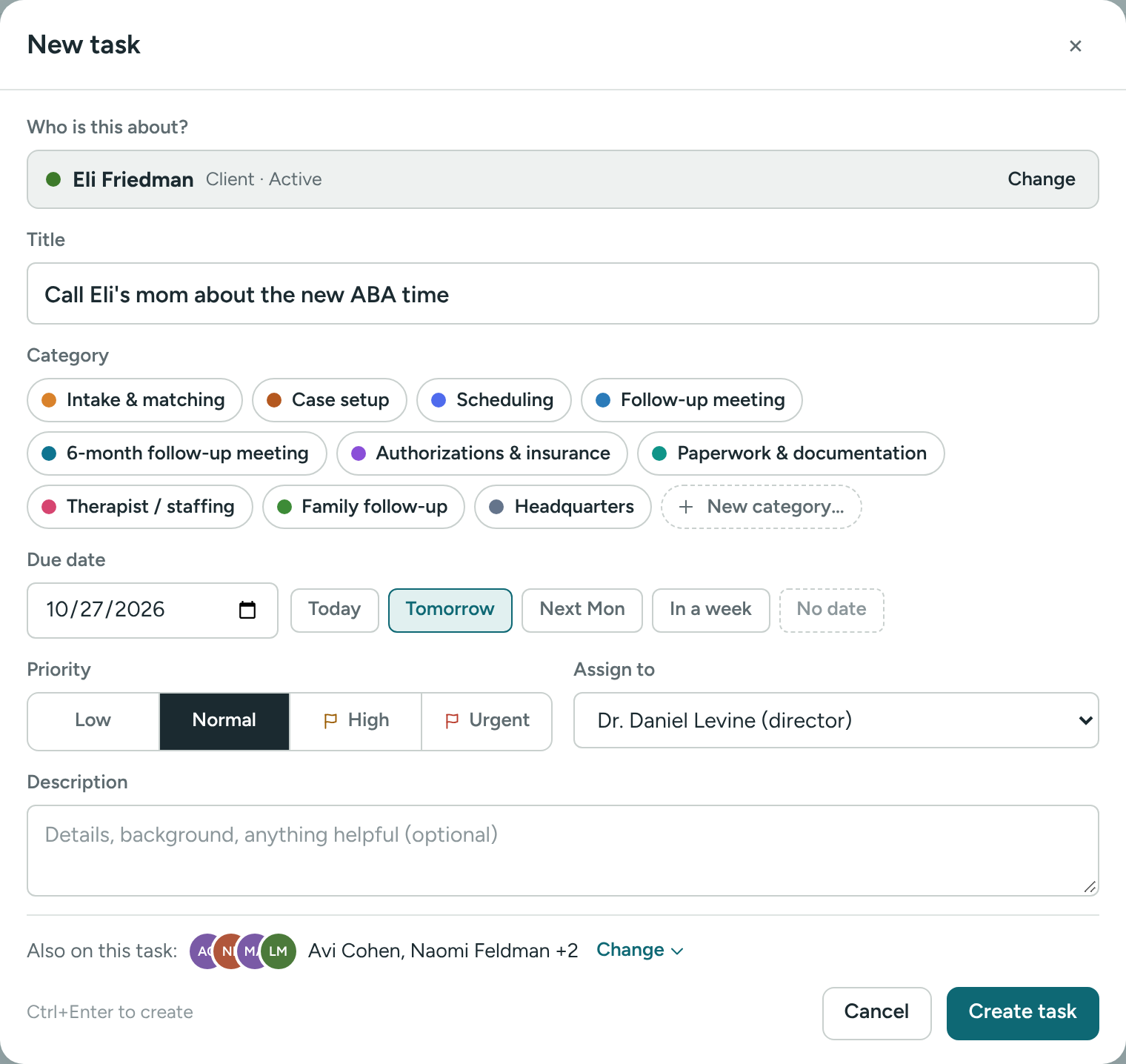
Who is this about?
Once picked, the person shows as one line. Click Change to pick someone else.
Leave it empty for general office work, like ordering supplies. A category such as Headquarters keeps these together.
Category
Click a colored chip to choose it; click again to clear it. Without one, you'll see Pick a category.
When you pick a person, Caseglen chooses the category last used for them. You can change it.
Need a new one? Click + New category…, type the name and click Add (or press Enter). See Task categories.
Due date and priority
- Due date: pick a date, or click Today, Tomorrow, Next Mon or In a week. Click No date to clear it.
- Priority: click Low, Normal, High or Urgent. New tasks start on Normal. High and Urgent show a flag.
- Assign to: starts with your agency's clinical director. Choose Nobody yet if you're not sure.
Also on this task
For a client, their care team is on the task by default. The line shows who, for example Also on this task: Dana Cohen, Avi Stern +1.
- Click Change to open the list.
- Untick anyone who isn't involved.
- Click + Add someone else to add another person.
- Click Done to close the list.
Everyone on the task shows in its Contacts, and the task goes into their Log.
Prefilled tasks
- From a profile: click New task (or press N) on a profile. The person is already picked.
- From a logged call: after you log a call, click Create task from this. The person is picked and the description has what you wrote. See The log.
- From the calendar: click + New task for this day. The due date is set. See The calendar.
Typed something and want to stop? Click Cancel. Caseglen asks Discard this new task? first.
What happens next
- The task shows on the board in Not started.
- The person it's assigned to gets an email (unless they assigned it to themselves). See Emails you get.
- A line like "Task #21 created: …" is added to the Log of everyone on the task.
If something is unclear or doesn’t match what you see on screen, tell us and we’ll fix it.