The calendar
See tasks on the day they're due, add a task for a day, and drag a task to a new date.
Updated
The calendar shows tasks on the day they're due. It's handy for spreading work across the week and for moving dates.
- Click Tasks in the sidebar.
- Click Calendar in the switch at the top left.
The filters above it still work. For example, choose Mine in Assigned to to see only your tasks.
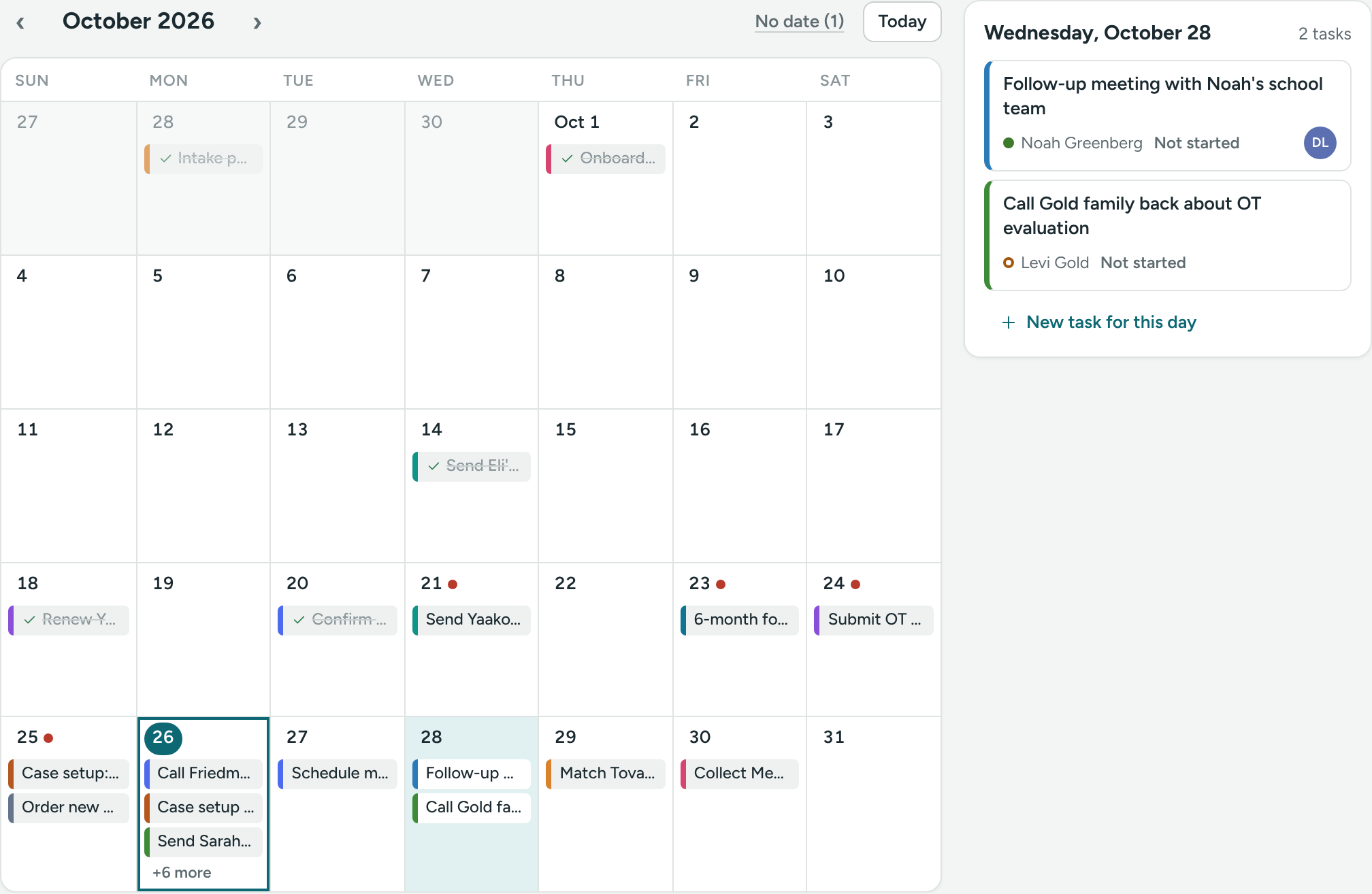
The month view
- Use ‹ and › to go to the previous or next month. Today jumps back to today.
- Each day shows up to three tasks, in their category color. +2 more means there are more.
- Finished tasks show a check mark and sit after the open ones.
- A small red dot on a past day means something there is overdue.
- No date (N) at the top opens the tasks that have no due date, in the List view.
The day panel
Click a day. Its tasks show in the panel next to the month (under it on smaller screens). Each task shows its title, who it's about, its status (or Overdue) and who has it. Click a task to open it.
Add a task for a day
- Click the day.
- Click + New task for this day at the bottom of the panel.
- The New task window opens with the due date already set. Fill in the rest and click Create task.
See Create a task.
Move a due date
- Drag a task from one day to another.
- Drop it. The day lights up while you're over it.
The new date is saved right away, and you'll see Moved to and the date. The person it's assigned to isn't emailed about the change.
On a phone
The calendar shows one week at a time.
- Tap a day in the strip. The dots under each day are its tasks.
- Its tasks show below.
- Use ‹ and › to go a week back or forward. Today jumps back.
Dragging isn't available on a phone. To change a date, open the task and click Edit.
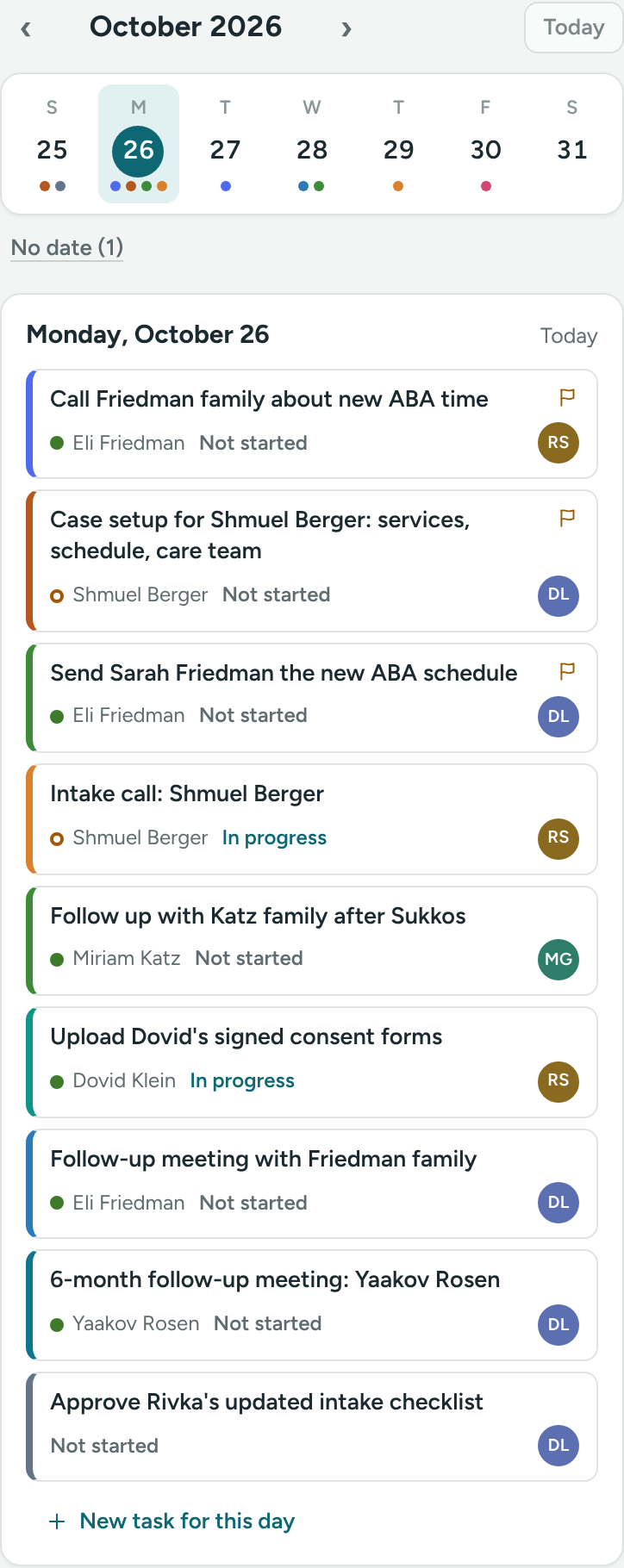
The calendar remembers the month and day you were looking at, so the page address can be bookmarked or shared.
If something is unclear or doesn’t match what you see on screen, tell us and we’ll fix it.