Reopen, edit or delete a task
Change a task's details, bring back a finished task, or remove one for good.
Updated
Edit a task
- Open the task.
- Click Edit at the bottom.
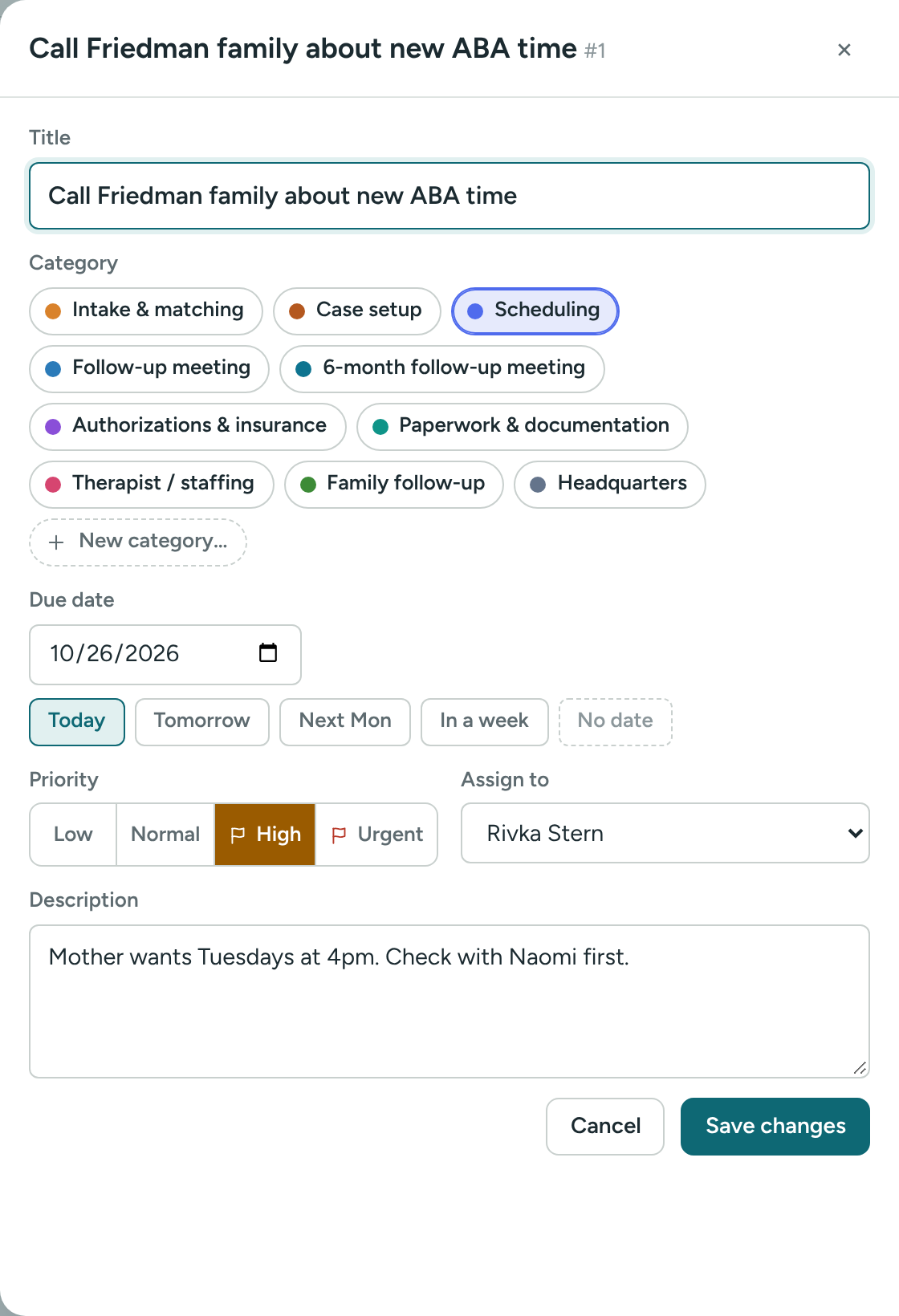
- Change what you need. The fields are in the same order as in New task:
- Title
- Category (the colored chips, with + New category…)
- Due date, with Today, Tomorrow, Next Mon, In a week and No date
- Priority: Low, Normal, High or Urgent
- Assign to
- Description
- Click Save changes, or press Ctrl + Enter. You'll see Changes saved.
Click Cancel to leave without saving.
To move only the due date, you can also drag the task to another day in the calendar.
To change who the task is about, create a new task and delete the old one.
Reopen a finished task
- Open the task. Find it in the Done column of the board, under Done (last 30 days) in the List view, or under Finished today on the Today page.
- Click Reopen at the bottom.
You'll see Task reopened. The task goes back to Not started. You can also click Not started or In progress at the top of the panel, or drag the card out of Done.
When a task is reopened:
- The note that was left when it was marked done is cleared.
- A line like "Task #14 reopened: …" is added to the log of everyone on the task.
- When it's finished again, the creator gets a new Done email.
Delete a task
- Open the task.
- Click Delete at the bottom left.
- Confirm.
You'll see Task deleted.
Who can delete a task?
- The person who created it.
- Any Director.
If you don't see Delete, you didn't create the task. Ask the creator or a director, or mark it done with a note like "No longer needed".
A line like "Task #14 deleted: …" is added to the log of everyone on the task, so there's still a record.
Delete a comment
Click Delete next to the comment and confirm. You can delete your own comments. Directors can delete any comment.
If something is unclear or doesn’t match what you see on screen, tell us and we’ll fix it.