Open a task
What's in the task panel, from the status buttons to comments and contacts.
Updated
Click a task on the board, the calendar, the Today page, a profile or in search results. It opens in a panel on the right. The page address changes too, so you can copy it and send the task to a colleague.
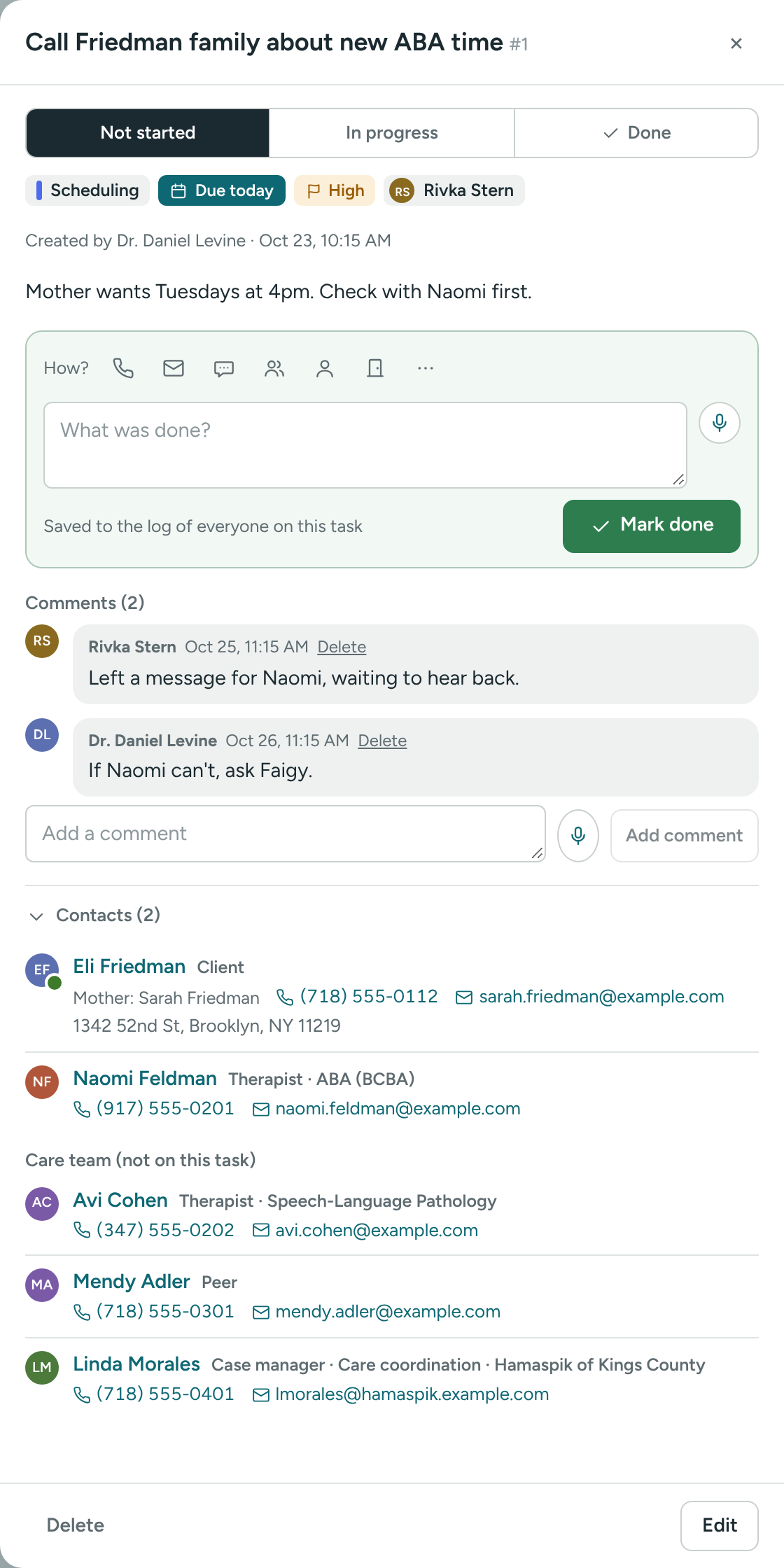
From top to bottom
The title and number, for example Call about insurance #14.
Status buttons: Not started, In progress and Done. Click one to move the task. Clicking Done takes you to the What was done? box.
The details line:
- The category, with its color (or No category)
- The due date, for example Due today or 2 days overdue
- A flag with High or Urgent, if it's set
- Who it's assigned to (or Not assigned)
Under it: Created by who made it, and when.
Description – any details that were added.
Mark done – a small box to finish the task right here: how it was handled, What was done?, and the Mark done button. See Mark a task done. When the task is done, a green box shows who finished it, when, and their note instead.
Comments – see below.
Contacts (N) – everyone on the task. See below.
Comments
Use comments to talk about the task without email threads.
- Type in Add a comment.
- Click Add comment, or press Ctrl + Enter.
To talk instead of typing, click the microphone next to the box. See Voice notes on tasks.
The person who created the task and the person it's assigned to get an email (not you, if you wrote it). To delete a comment, click Delete next to it. You can delete your own; directors can delete any.
Contacts
Click Contacts to open or close the list. For a task about a client, it's open already.
- The person it's about, with phones and email. For a client, the parent or guardian and the address too.
- Everyone else on the task, usually the care team.
- Care team (not on this task) – care-team members who were left off, or joined later.
Phone numbers and emails are links. On a phone, tap to call. Click a name to open that person's profile.
The buttons at the bottom
- Delete – if you created the task, or you're a director.
- Edit – change the title, category, due date, priority, assignee or description.
- Reopen – only on a finished task.
See Reopen, edit or delete a task.
Close the panel
Click the × at the top, press Esc, or use your browser's Back button. If you typed something that isn't saved, Caseglen asks Discard your changes? first.
If something is unclear or doesn’t match what you see on screen, tell us and we’ll fix it.