The task board
Board, List and Calendar views, drag and drop, and the filters.
Updated
On this page
Click Tasks in the sidebar. Next to the heading you'll see how many open tasks match your filters, for example 12 open.
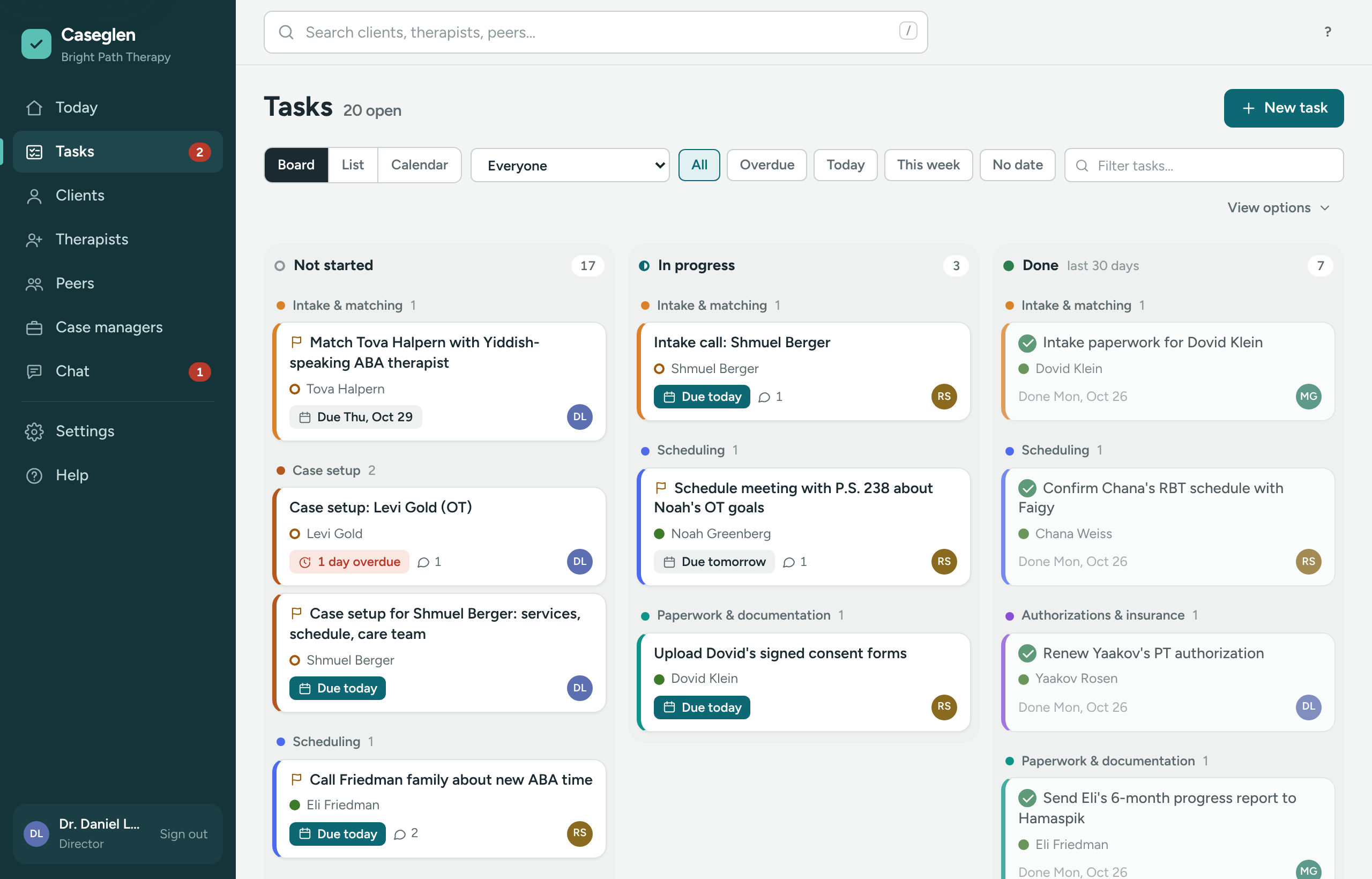
Board, List or Calendar
The switch at the top left changes the view:
- Board – cards in three columns.
- List – tables of tasks.
- Calendar – tasks on the day they're due. See The calendar.
The three columns
- Not started – new tasks land here.
- In progress – someone is working on it.
- Done – finished in the last 30 days.
Each card shows the title, who it's about, the due date, a flag for High or Urgent, the comment count and (when you look at more than your own tasks) who has it. The colored edge is the category color. Overdue tasks come first, then by due date, then by priority.
On a phone, the columns sit side by side. Swipe, or tap Not started, In progress or Done above them.
Drag and drop
Drag a card to another column. Drop it on Done and a small Mark task done window opens. See Mark a task done.
Filters
The filters stay in the page address, so you can bookmark a view.
- Assigned to – choose Mine, Everyone, or one team member. Directors start on Mine. Staff start on Everyone. People without access are at the bottom, marked (no access).
- Due chips – All, Overdue, Today, This week (today and the next six days) and No date.
- Filter tasks… – type words from the title or description, a task number like
#14, or the name of the person it's about.

View options
Click View options at the end of the toolbar for a second row:
- By category / By date – grouped under category headings (the default), or all in due-date order with the category on each card.
- All categories – pick one category, or No category.
Click View options again to close the row and go back to the defaults.
Coming from a profile, you may see a chip like About: Sam Levy. Click its × to remove it. If nothing matches, click Show all tasks.
The List view
There is one table per category (or one table, All open tasks, by due date). The columns are Task, About, Due, Assigned to and Status. Change the status from the Status drop-down. Choosing Done opens the Mark task done window.
At the bottom, click Done (last 30 days) to show finished tasks.
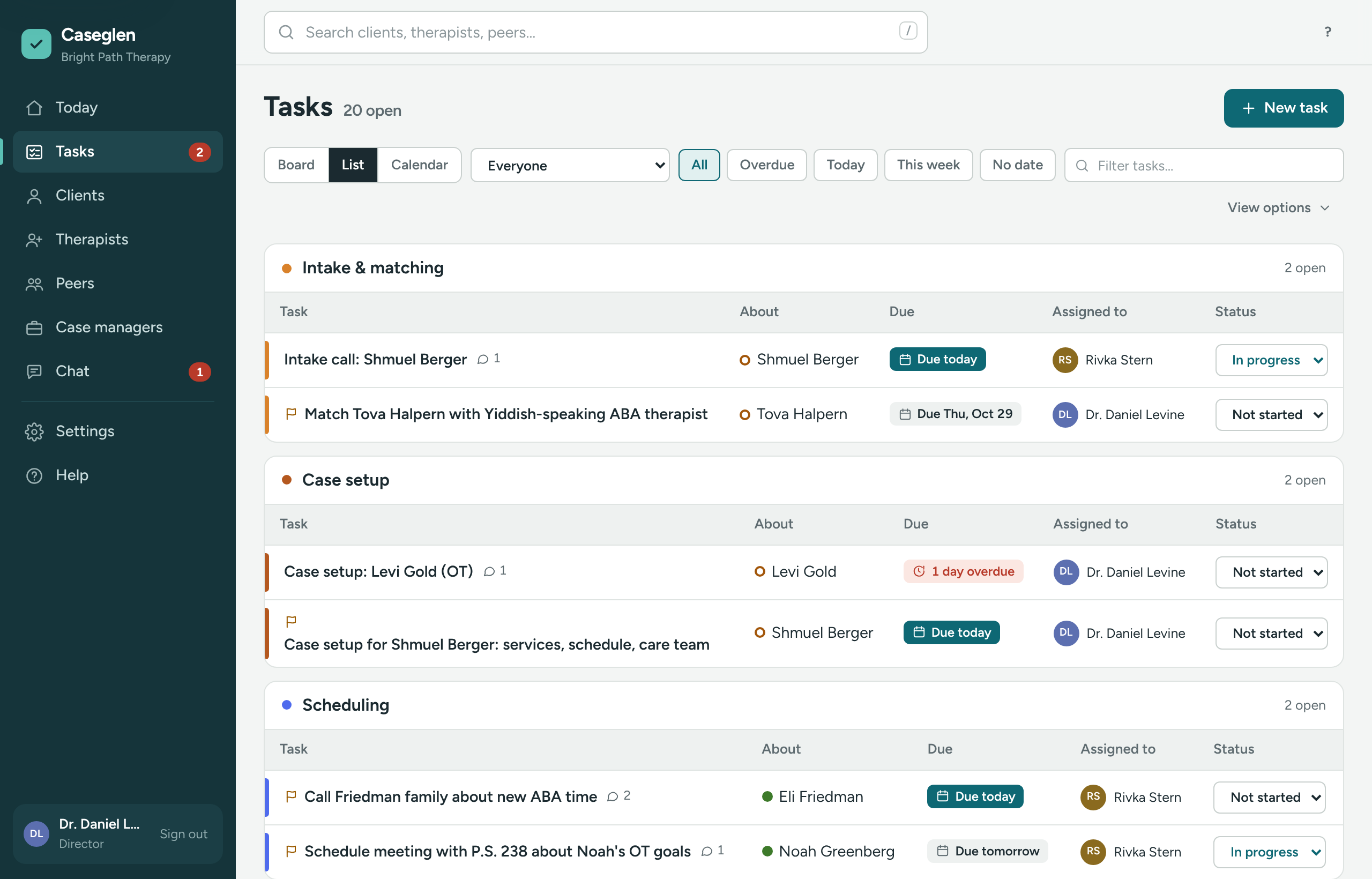
Open a task
Click any card or row. See Open a task.
If something is unclear or doesn’t match what you see on screen, tell us and we’ll fix it.