Voice notes on tasks
Record a voice note instead of typing a comment or a done note, and listen to, speed up, download or delete one.
Updated
On this page
Anywhere you can write a comment on a task, or a note when you mark it done, you can record a voice note instead.
Record a voice note
- Open the task.
- Click the microphone button:
- next to Add a comment, for a spoken comment (Record a voice comment), or
- next to What was done? in the Mark done box, to say what you did (Record what was done).
- The first time, your browser asks to use the microphone. Click Allow.
- Speak. A red dot, a timer and a level meter show it's recording. When the bars move, it's hearing you.
- Click Stop.
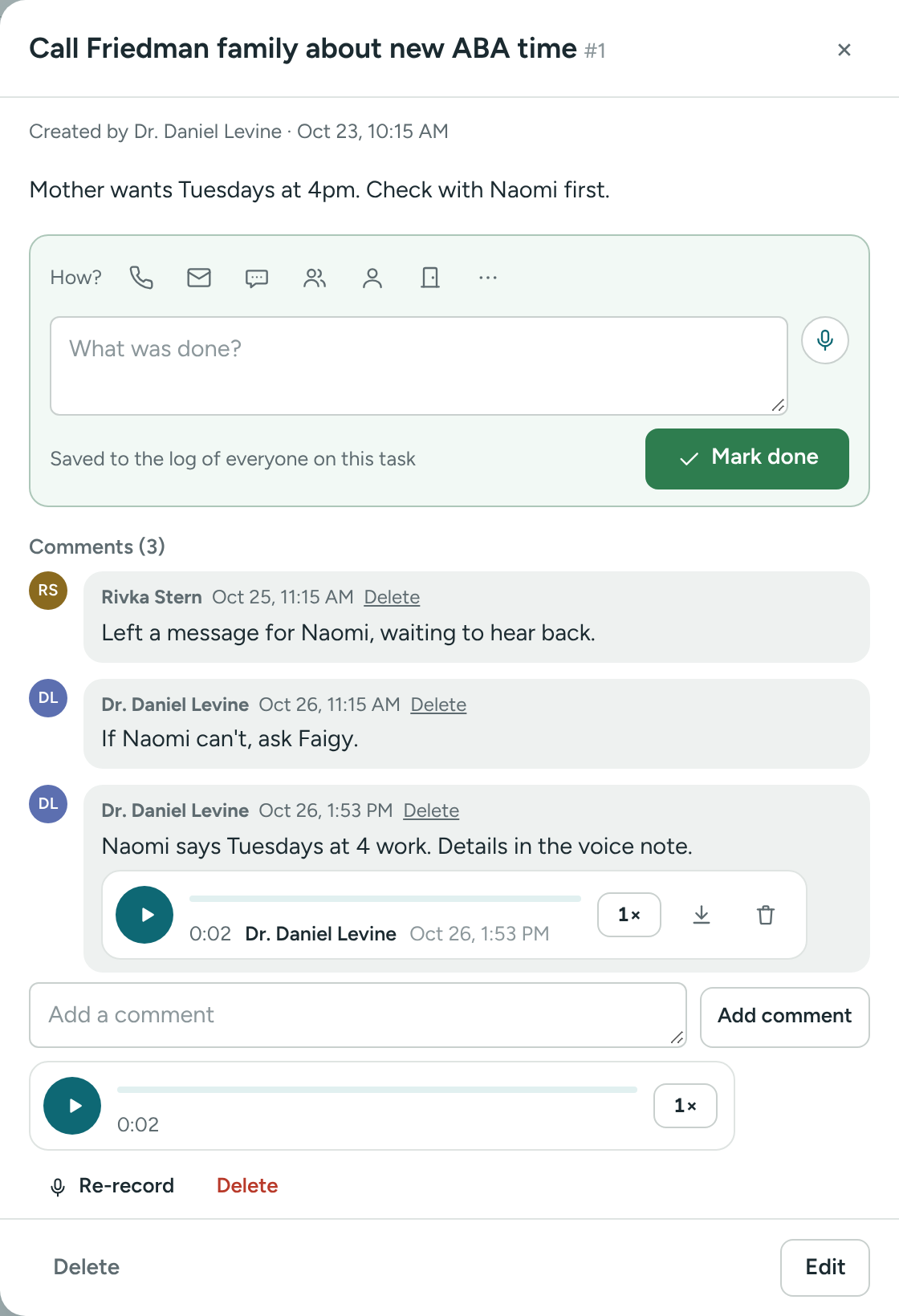
- Listen to it: it shows as Your voice note (not sent yet). Click Re-record to try again, or Delete to throw it away.
- Send it: click Add comment (or Mark done). You can type a few words too, but you don't have to.
The small Mark task done window has the same button.
A voice note can be up to 5 minutes long. In the last 30 seconds the timer counts down (20s left). At 5:00, the recording stops by itself and you can still send it.
A recording isn't saved until you send it. Closing the task asks Discard your changes? first.
If you only record, the comment (or done note) says Voice note, so emails and the log still make sense.
Listen to a voice note
Voice notes show under their comment, and in the green done box of a finished task, with who recorded them and when.
- Click Play (the round button). Click again to pause.
- Click or drag on the bar to jump to a spot. With the keyboard, use the arrow keys.
- Click 1× to change to 1.5× or 2× speed.
- Click the download arrow to save the recording to your computer or phone.
Who hears about it
The usual comment and done emails say Includes a voice note (1:24) — open the task to listen. The recording is never attached. See Emails you get.
Only people in your agency can play a voice note. It's stored privately with the task.
Delete a voice note
Click the trash icon on it. You can delete your own; directors can delete any. A comment that was only the voice note goes too. Deleting a task deletes its voice notes.
The microphone isn't working?
- "Allow the microphone in your browser to record": you (or the browser) said no earlier. Click the microphone or lock icon in the address bar, set Microphone to Allow, and try again.
- "No microphone was found": plug in a headset.
- "The microphone is busy": close other apps that use it, like a video call.
- On an iPhone or iPad: use Safari. If you said no before, go to Settings → Safari → Microphone and pick Ask or Allow.
If something is unclear or doesn’t match what you see on screen, tell us and we’ll fix it.