Mark a task done
Finish a task from the open task or the board, leave a note, and see who gets emailed.
Updated
On this page
Mark it done in the open task
The Mark done box sits right under the description.
- Open the task.
- Optional: next to How?, click an icon for how it was handled: Phone call, Email, Text message, Meeting, Session, Home / school visit or Other. Its name shows next to the icons. Click it again to clear it.
- In What was done?, write a short note. It's optional.
- Read the line next to the button. It tells you who hears about it (see below).
- Click Mark done, or press Ctrl + Enter in the note box.
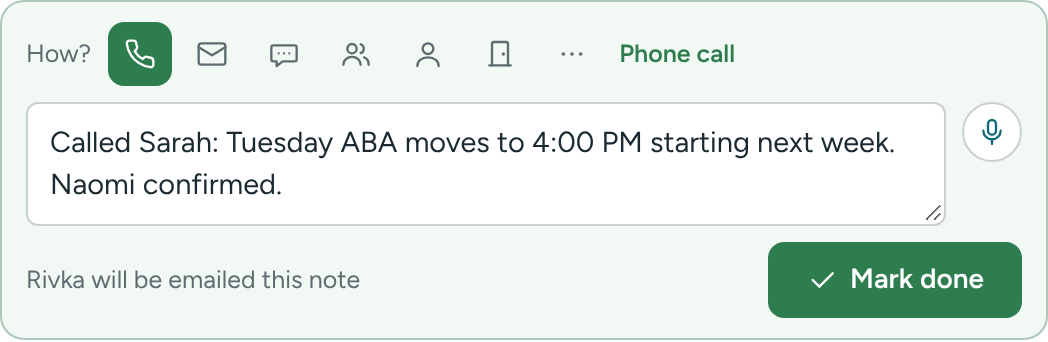
Clicking Done in the status buttons at the top takes you to the same box.
Rather talk than type? Click the microphone next to What was done? to record a voice note. See Voice notes on tasks.
From the board or the list
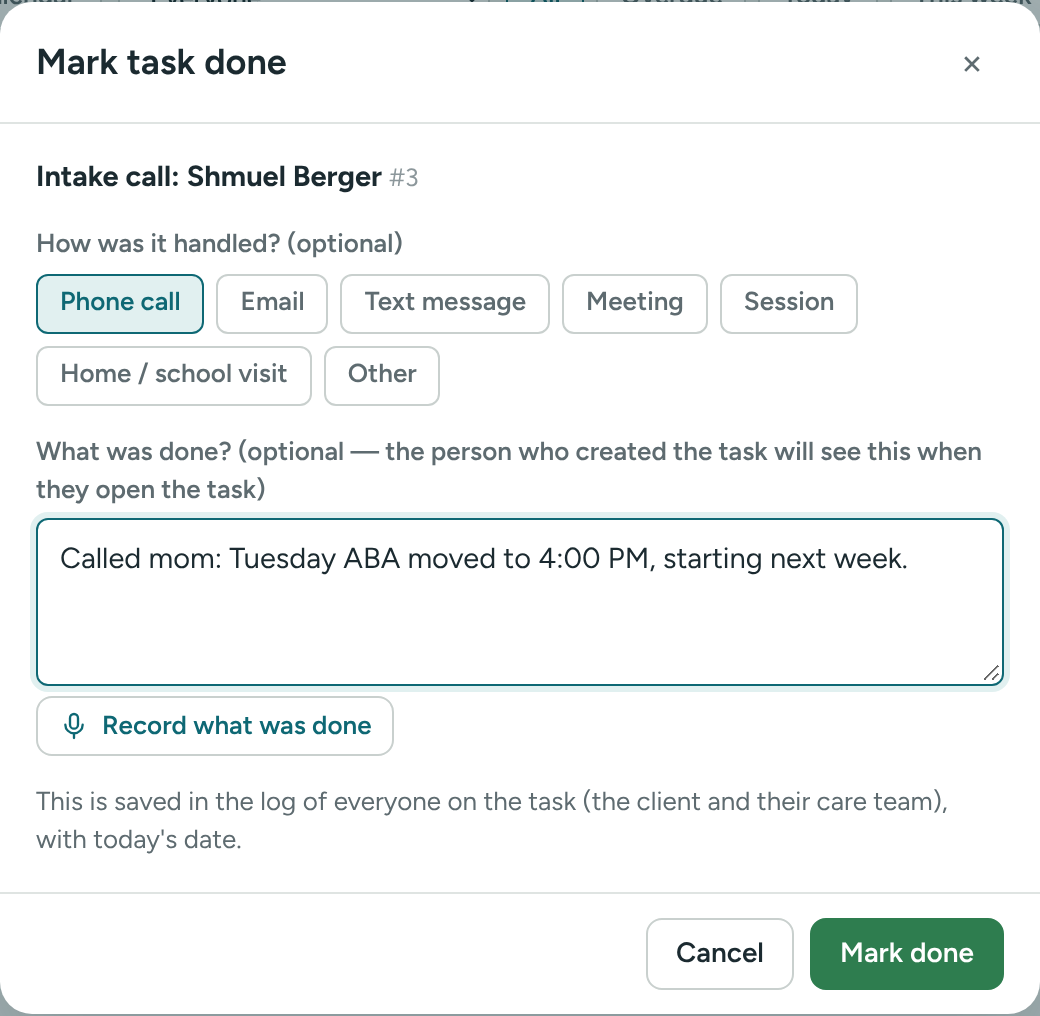
Drag a card to the Done column, or choose Done in the Status drop-down of the List view. A small Mark task done window opens with the same choices: How was it handled? (optional), What was done? and a microphone. Click Mark done, or Cancel to leave the task as it was.
Who gets emailed
The line next to Mark done tells you before you click:
- Dana will be emailed this note – the person who created the task gets the Done email, with your note.
- Dana will be emailed that it's done – they get the email, but your agency uses Minimal emails, so the note isn't in it.
- Saved to the log of everyone on this task – nobody is emailed. You created the task yourself, or the creator turned off My task is done in their settings.
Anyone on the When a task is done, also email list (set by a director in Settings → Organization & emails) gets the Done email too. The person it was assigned to isn't emailed for finishing their own task. See Emails you get.
What else happens
- The task moves to Done and stays there for 30 days.
- A line like "Phone call — Task #14 done: Call about insurance", with your note, is added to the Log of everyone on the task.
- It shows under Finished today on the Today page, and under Recently done on the person's profile.
Write a useful note
- "Spoke to mom. Starting Tuesday 4pm with Dana."
- "Authorization approved through 3/31. Uploaded to the portal."
Done by mistake?
Open the task and click Reopen. See Reopen, edit or delete a task.
If something is unclear or doesn’t match what you see on screen, tell us and we’ll fix it.