A client's profile
The header with status and quick contact buttons, the log, tasks, details and care team.
Updated
On this page
Click any client's name, anywhere in Caseglen, to open their profile.
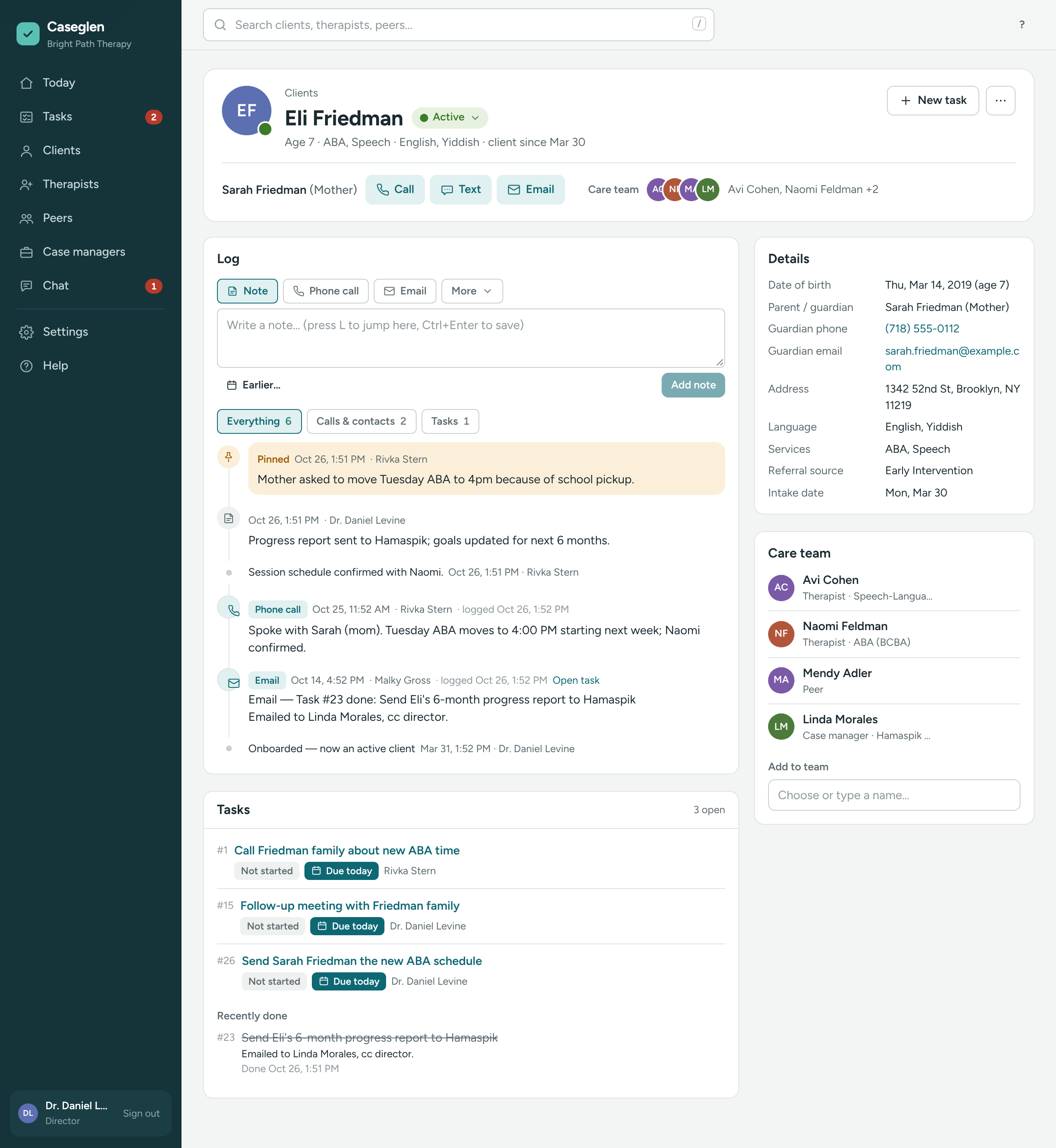
The header

- Clients above the name takes you back to the list.
- The status button next to the name, for example ● Active ▾. Click it to change the status. See below.
- One line of facts under the name: age, services, language, and when they reached out (potential) or since when they're a client (active).
On the right:
- Mark as onboarded – only for potential clients.
- New task – a task about this client. You can also press N.
- ⋯ – Edit details, and Delete… for directors.
Call, Text or Email in one tap
Under the name, the header shows who the office calls: the parent or guardian (with the relation), or the client if there's no guardian.
- Call – opens your phone app.
- Text – opens a text message.
- Email – opens a new email.
The buttons show only when there's a phone number or email.
Care team at a glance
Next to the contact, Care team shows small pictures and the first names. Click the names to jump to the Care team card.
The status menu
Click the status button to see what you can do:
- Mark as onboarded (potential clients)
- Make inactive (potential and active clients)
- Reactivate (inactive clients)
- Move back to potential (active clients, directors only)
See Mark as onboarded and Make inactive or reactivate.
The rest of the page
On the left:
- Log – calls, notes, tasks and changes. Press L to jump to it. See The log.
- Tasks – open tasks about this client with status, due date and who has it. Recently done shows finished tasks with their notes.
On the right:
- Details – date of birth and age, parent or guardian, phones, email, address, language, services, referral source and intake date. Empty fields are hidden.
- Care team – therapist, peer and case manager, with call and email buttons. See Build a client's care team.
Was this helpful?
Contact usIf something is unclear or doesn’t match what you see on screen, tell us and we’ll fix it.